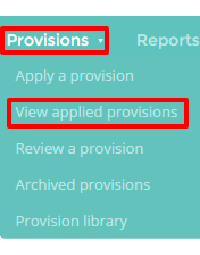
To view or edit an applied provision, mouse over the Provisions tab and then select View applied provision from the drop down menu.
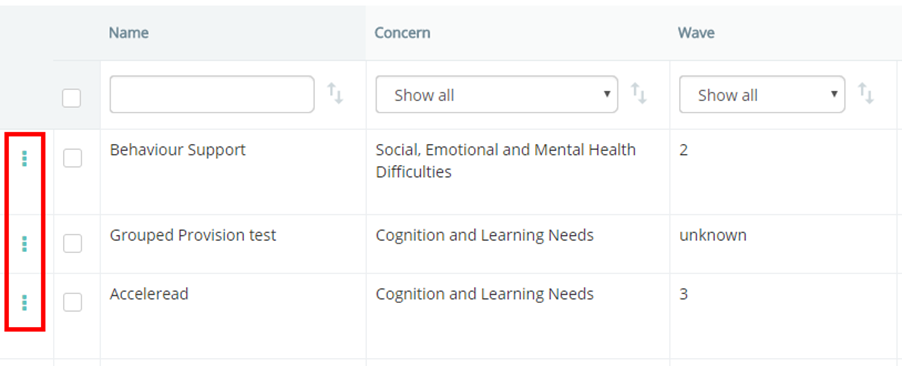
You will see a list of applied provisions at your school. Click on the 3 dots menu that appears alongside the provision you wish to view / edit.
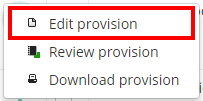
Next, select Edit provision from the pop up menu.
This will then take you to your chosen provision.
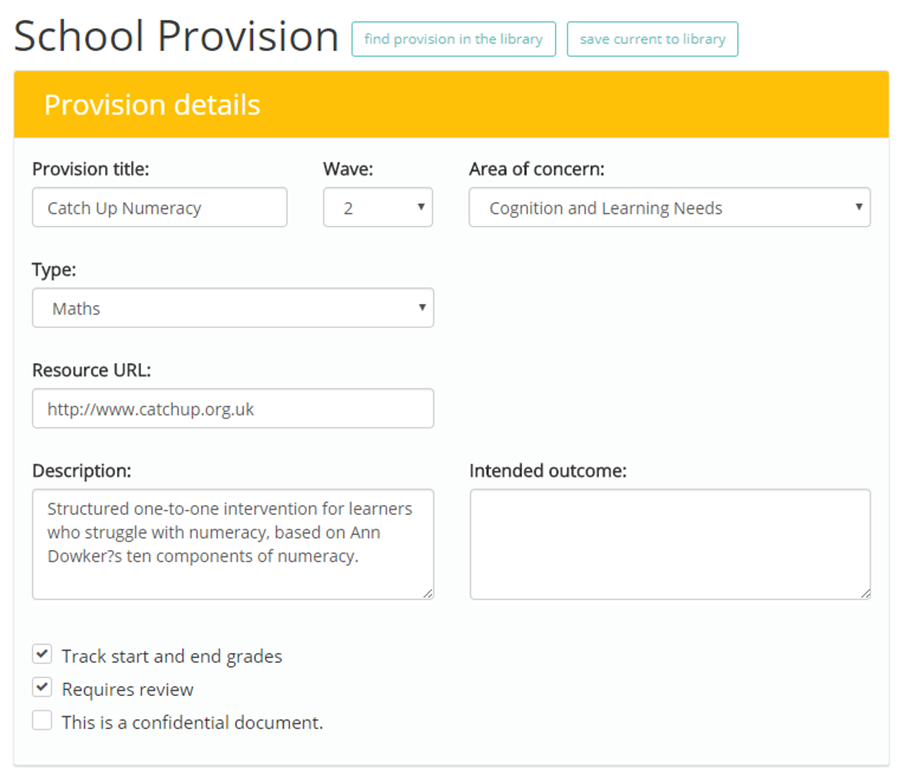
If you have permission to do so, you can make the changes to the provision. Once you have finished, click on the Save button in the top right hand corner of the page to keep your changes.
Was this article helpful?
That’s Great!
Thank you for your feedback
Sorry! We couldn't be helpful
Thank you for your feedback
Feedback sent
We appreciate your effort and will try to fix the article