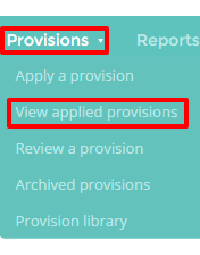
To clone a provision, mouse over the Provisions tab at the top of the page and select View applied provisions from the drop down menu.
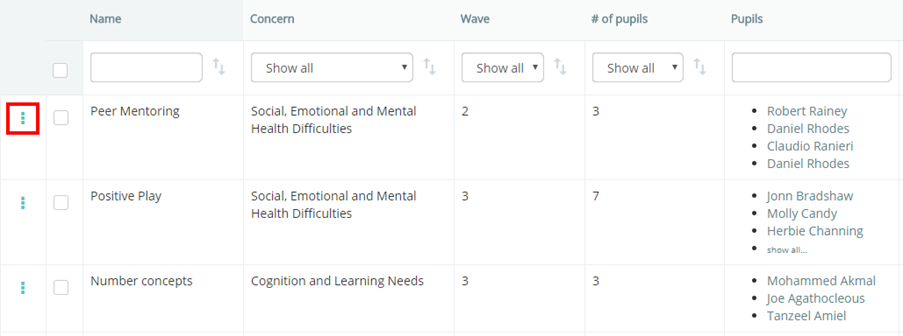
You will be presented with a list of the provisions that have been applied at your school. Click on the three lines menu for your chosen provision.
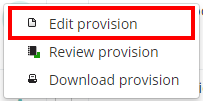
Next, click on Edit provision in the resulting popup menu.
This will direct you to the Edit provision page. Click on the Clone button to begin cloning the provision.

The popup shown below will appear. Select one of the available options, which are explained below.
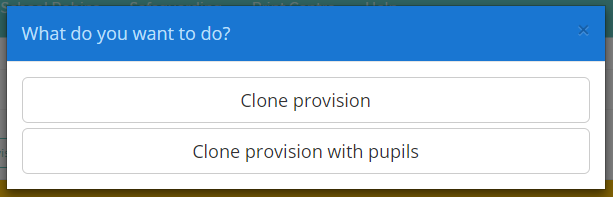
Clone provision: This will make a copy of the provision. Pupils that are assigned to the current provision will not be assigned to the cloned provision.
Clone provision with pupils: This will make a copy of the provision. Pupils that are assigned to the current provision will also be assigned to the cloned provision.
Once a choice has been made, you will be on the Edit provision page for the cloned provision. The word (copy) will appear within the provision’s name, distinguishing it from the original. Click on the Publish button to save the cloned provision.
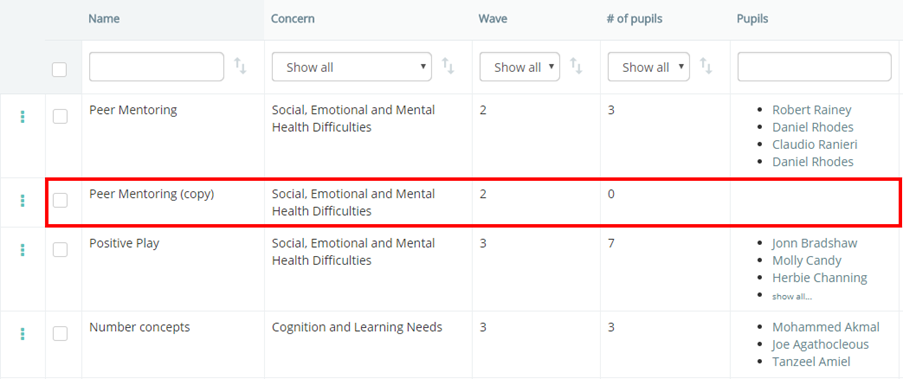
Once saved, the cloned provision will be displayed on the View applied provisions page. In the example below, the provision was cloned without the assigned pupils.
Was this article helpful?
That’s Great!
Thank you for your feedback
Sorry! We couldn't be helpful
Thank you for your feedback
Feedback sent
We appreciate your effort and will try to fix the article