To create a provision, mouse over the Provisions tab at the top of the page and select Apply a provision from the drop down menu.
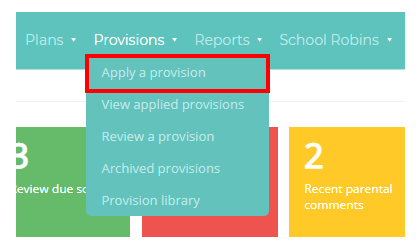
This will take you to the edit provision page. To create the provision, fill out the provision details into the relevant sections. These sections are explained in more detail in the following Knowledgebase article.
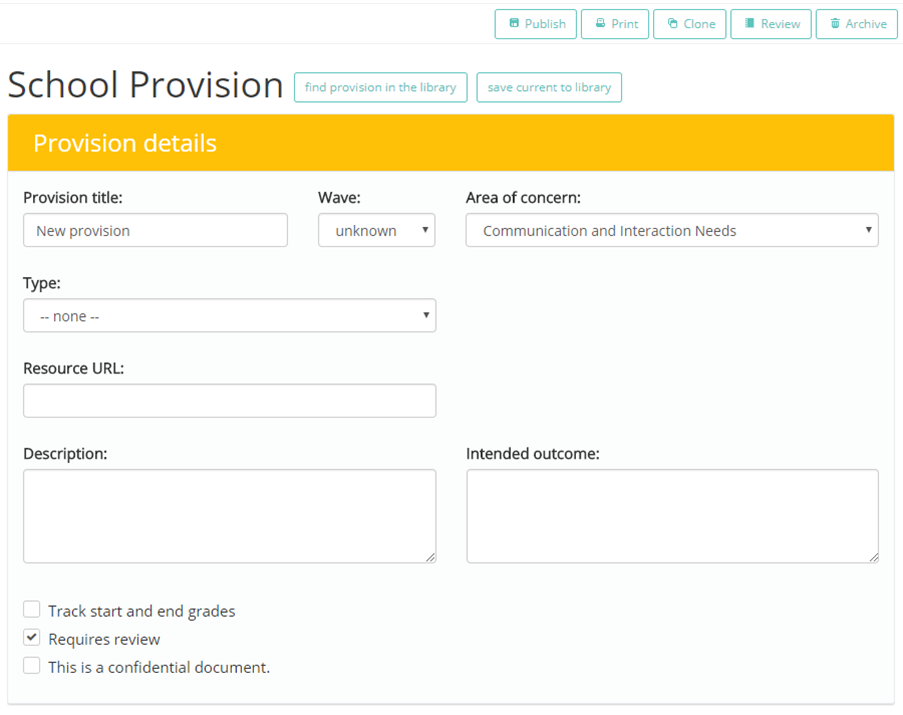
You can also import an existing provision template from the provision library. To do this, click on the find provision in the library button above the Provision details section of the provision.

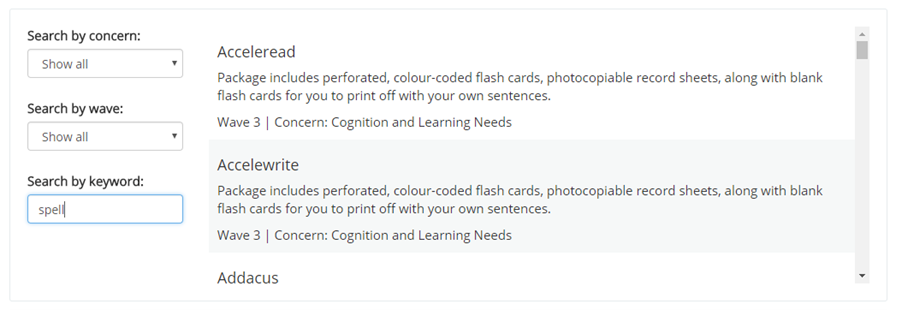
A search menu will appear that allows you to select a provision template to work from. Click on the provision that you would like to apply and its details will populate the Provision details section.
Once you have finished filling out each relevant section of the provision, click on the Publish button in the top right hand corner to add the provision to the View applied provisions list.
Was this article helpful?
That’s Great!
Thank you for your feedback
Sorry! We couldn't be helpful
Thank you for your feedback
Feedback sent
We appreciate your effort and will try to fix the article