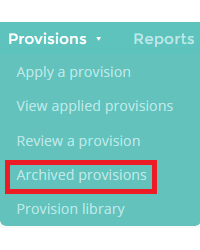
If you have archived a provision, you can view the provision again and optionally restore it. To view archived provisions, Mouse over the Provisions elect Archived provisions from the drop down menu.
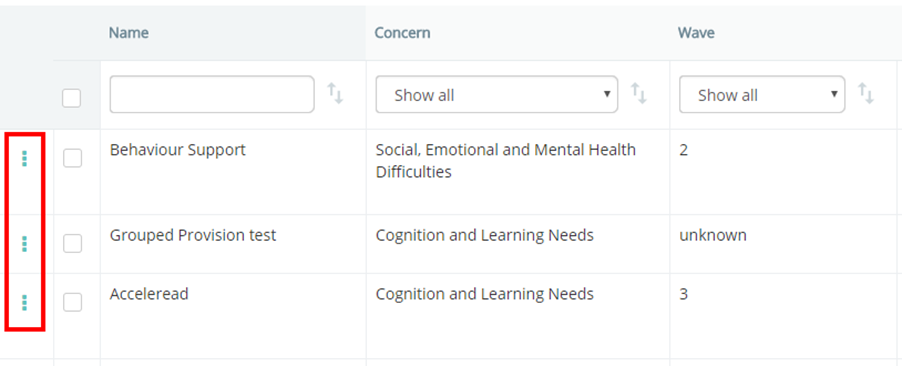
This will take you to a list of your school’s provisions. To view an archived provision, click on the 3 dots menu alongside the provision that you would like to view.
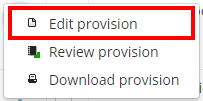
Next, select Edit provision from the drop down menu.
You will be on the provision edit page. A message banner along the top of the provision indicates that the provision is archived.

To restore the provision, click on the Publish button in the top right hand corner of the page. The restored provision will return to the View applied provisions list.

Was this article helpful?
That’s Great!
Thank you for your feedback
Sorry! We couldn't be helpful
Thank you for your feedback
Feedback sent
We appreciate your effort and will try to fix the article