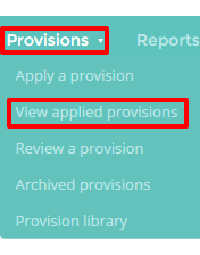
You can archive provisions which are no longer being applied in your school. To do this, mouse over the Provisions tab at the top of the page and select View applied provisions from the drop down menu.
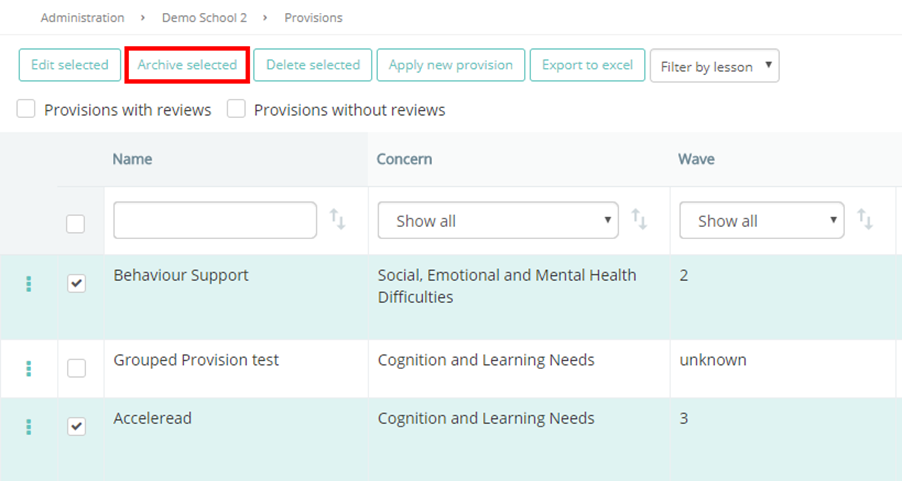
This will take you to a list of your school’s provisions. To archive multiple provisions at once, tick the checkbox next to the provisions that you would like to archive and click on the Archive selected button above the table.
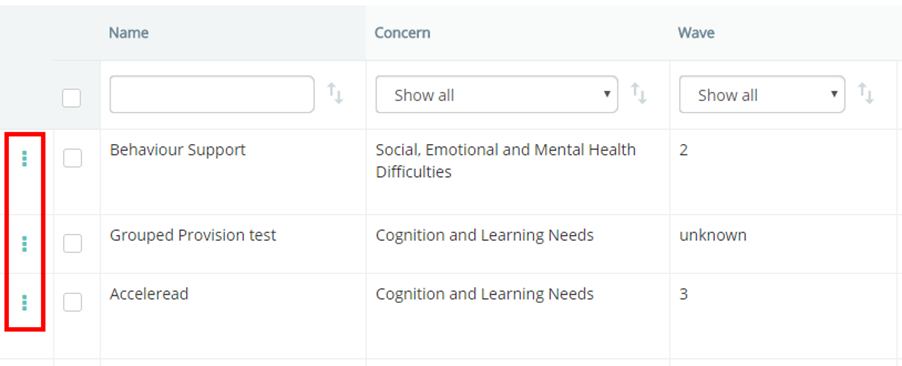
To archive an individual provision, click on the 3 dots menu next to the provision that you would like to archive.
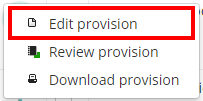
Next, select Edit provision from the popup menu.
You will be taken to the edit page for that provision. Click on the Archive button in the top right hand corner of the page.
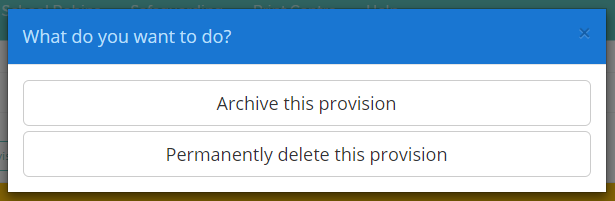
This will open a pop up window with two options: Archive this provision or Permanently delete this provision. Archived provisions can be restored at a later date, whereas deleted provisions are permanently removed from Provision Map. Choose the option which best applies to your scenario.
Was this article helpful?
That’s Great!
Thank you for your feedback
Sorry! We couldn't be helpful
Thank you for your feedback
Feedback sent
We appreciate your effort and will try to fix the article