If you cannot see this pupil in the list of available pupils to make data requests, it may be that their original school is not in your cluster. Please contact us if this is the case, as a setup process is required. The following guide explains this setup process: https://www.tes.com/knowledge-base/provision-map/transition-tool-setup-process
Requesting a transition request for multiple pupils
Place your mouse cursor over the Transitioning tab at the top of the page and select Information requests (Request) from the drop down menu.
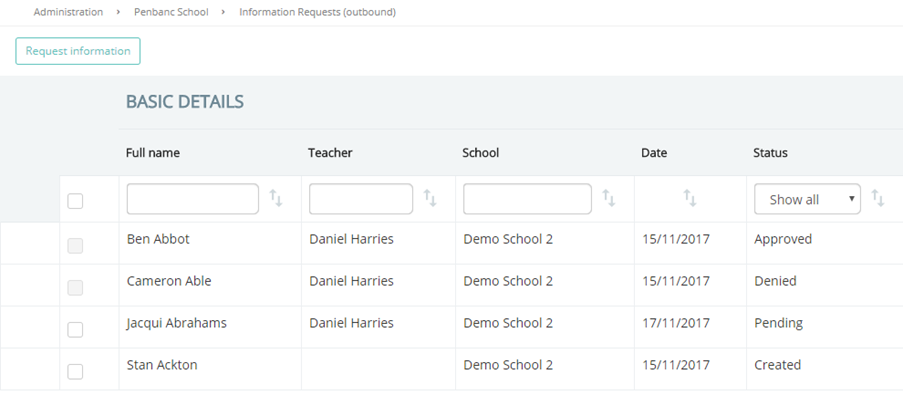
From this page multiple pupils can be selected and then transfer requests can be initiated by selecting the Request information button.
The Create a data transfer request popup will appear. Tick the data which you would like to request and click on the Request Information button.
Requesting a transition request for an individual pupil
A transitioning banner will appear above the Core data section of the pupil’s plan or on a pupil’s profile. Click on the Request Data button to begin a transitioning request.
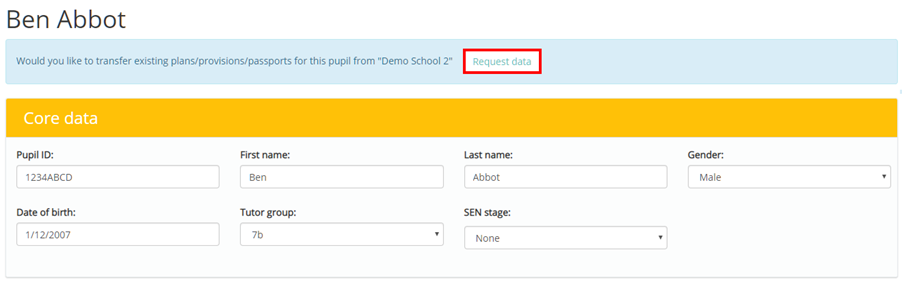
The Create a data transfer request popup will appear. Tick the data which you would like to request and click on the Request Information button.
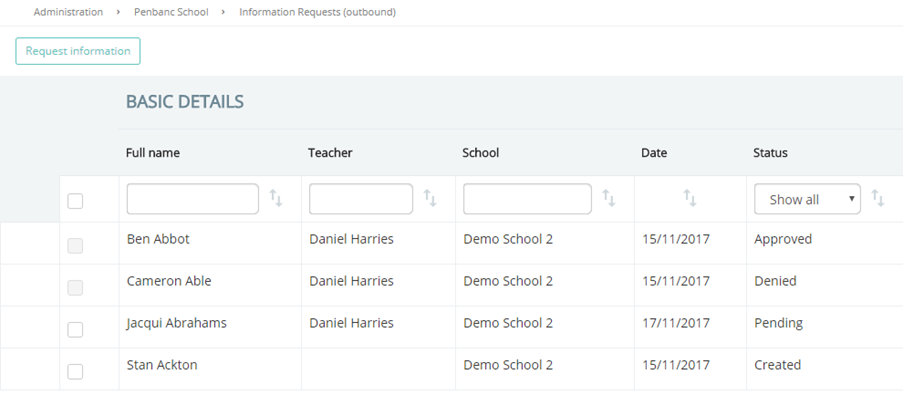
Once transfer requests have been made, you can monitor their current status and outcomes. To do this, mouse over the Transitioning tab at the top of the page and select Information requests (Request) from the drop down menu.
This will take you to the Information Requests (Request) page, where data requests made by your school are listed. Each entry in the table describes which pupil the request was for, who made the request, which school received the request, when the request was made and the status of the request.
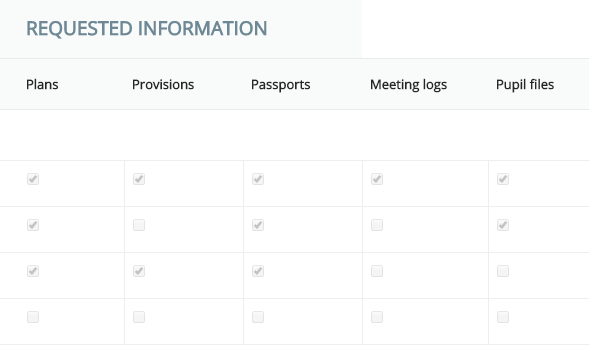
The data that was requested for each entry is also shown to the right of the table, under the Requested Information section.
There are four possible statuses for your request:
Created: A transitioning request has been made, but it has not reached the recipient school yet.
Pending: A transitioning request has been made, but the recipient school has not approved or denied the request.
Approved: The transitioning request has been approved, allowing you to access the requested data in your Provision Map account.
Denied: The transitioning request was denied by the recipient school, preventing you from accessing the requested data on your Provision Map account.
Was this article helpful?
That’s Great!
Thank you for your feedback
Sorry! We couldn't be helpful
Thank you for your feedback
Feedback sent
We appreciate your effort and will try to fix the article