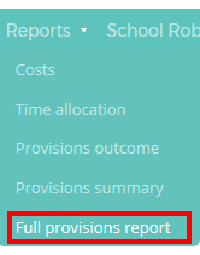
The full provisions report allows you to see an overview of which pupils are assigned to all of your provisions. To view a full provisions report, mouse over the Reports tab at the top of the page and select Full provisions report from the drop down menu.
Next, enter the time frame that you would like the report to cover and any additional criteria (such as including archived provisions or custom fields).
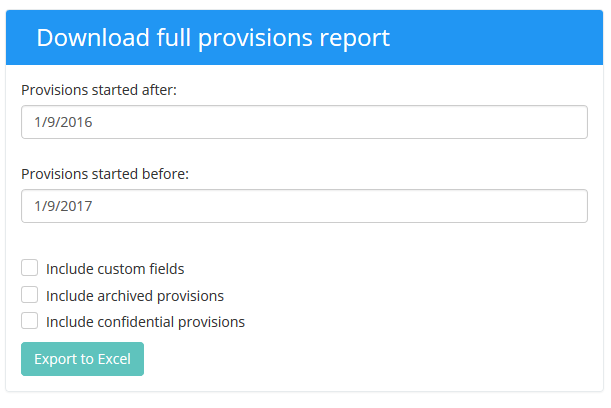
Finally, click on the Export to Excel button to generate the report.
Was this article helpful?
That’s Great!
Thank you for your feedback
Sorry! We couldn't be helpful
Thank you for your feedback
Feedback sent
We appreciate your effort and will try to fix the article