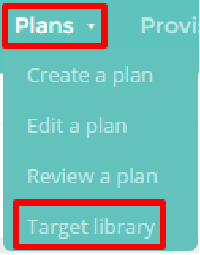
To add new targets to the target library, mouse over the Plans section of the top menu and select Target Library from the list of available options.
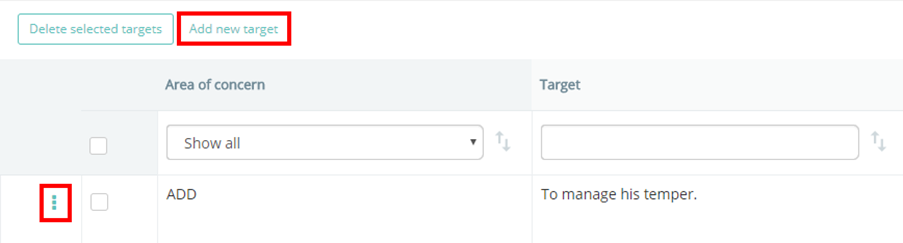
You will be taken to a list of the available targets. To create your own target, click on the Add new target button above the list. To edit an existing target, click on the three dots next to a target in the list and select the pencil icon.
You will then see the create target / edit target screen as shown below, where you can enter the information that describes the target.
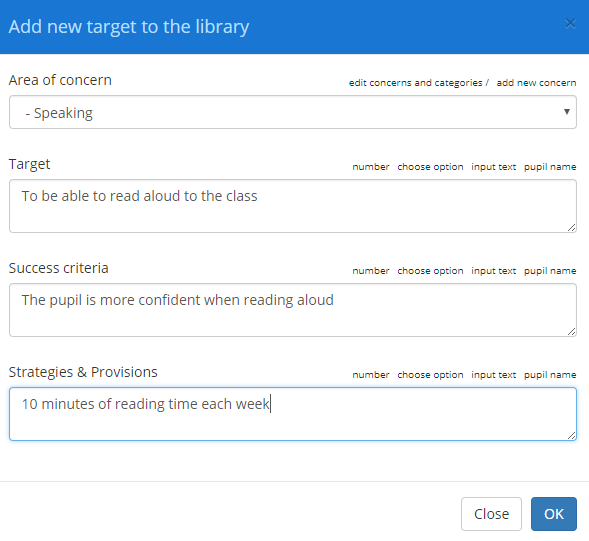
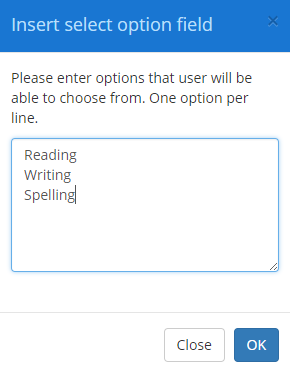
For each text area within the target, special formatting options of number, choose option, input text or pupil name are available. If selected, they will allow you to add extras such as drop down menus, the pupil’s name, a numerical range and an area to enter further text.

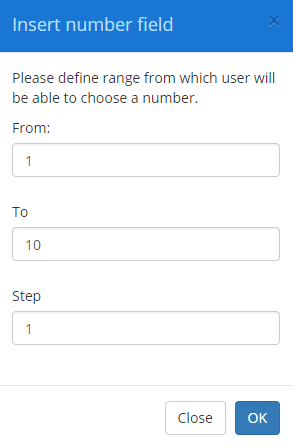
Number: The number field allows you to set up a numerical range that the user can select a number from.
Option: The choose option field allows you to create a drop down menu for users to select from.
Was this article helpful?
That’s Great!
Thank you for your feedback
Sorry! We couldn't be helpful
Thank you for your feedback
Feedback sent
We appreciate your effort and will try to fix the article