You can customise the print layout of your plans by adding page breaks in the plan templates, i.e where a section of a plan will start on the next page on a printout.
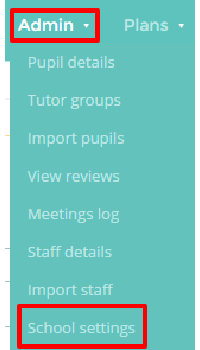
Firstly, navigate to the school settings via the admin drop down on the turquoise bar and select school settings.
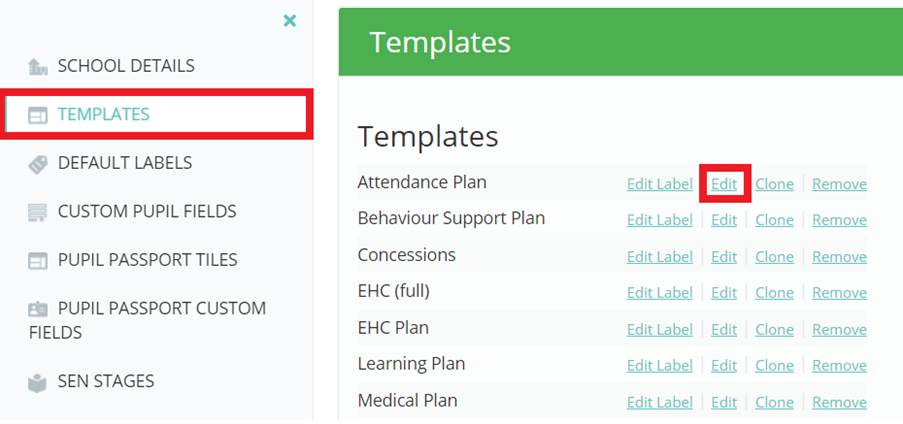
Next, find the template which you wish to add page breaks to. This is located down the settings page in the template section and edit template.
The page break icon will appear on each of the sections allowing the print layout to be customised. It will be highlighted by default, indicating that this section of the plan will print on a new page.
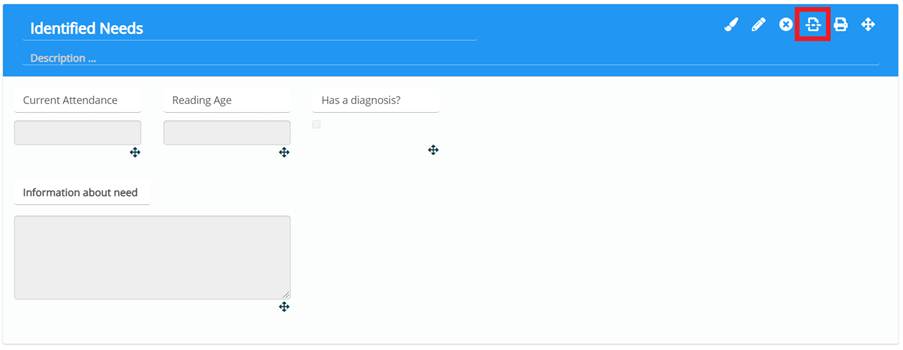
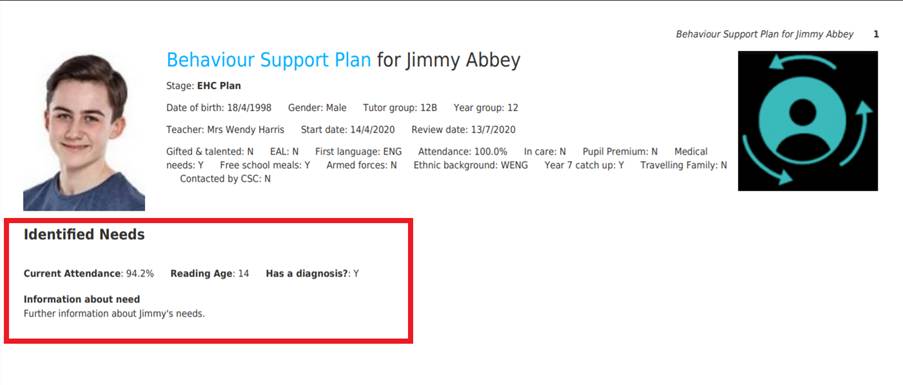
Printing this plan would start the Identified needs on a new page from the section above.
If you require a section to continue on the same page in the printout, simply click on the page break icon and it will become faded.
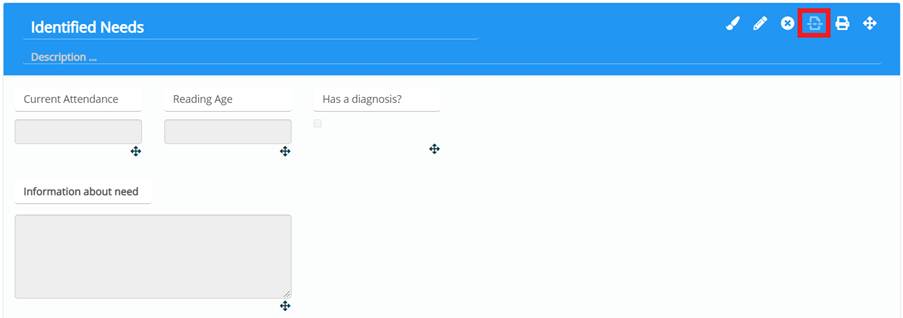
In this example, identified needs would continue on the same page as the core details on the printout, seen below.
This feature allows you to customise your plan printouts by grouping and separating key sections when in need of a physical copy.
Was this article helpful?
That’s Great!
Thank you for your feedback
Sorry! We couldn't be helpful
Thank you for your feedback
Feedback sent
We appreciate your effort and will try to fix the article