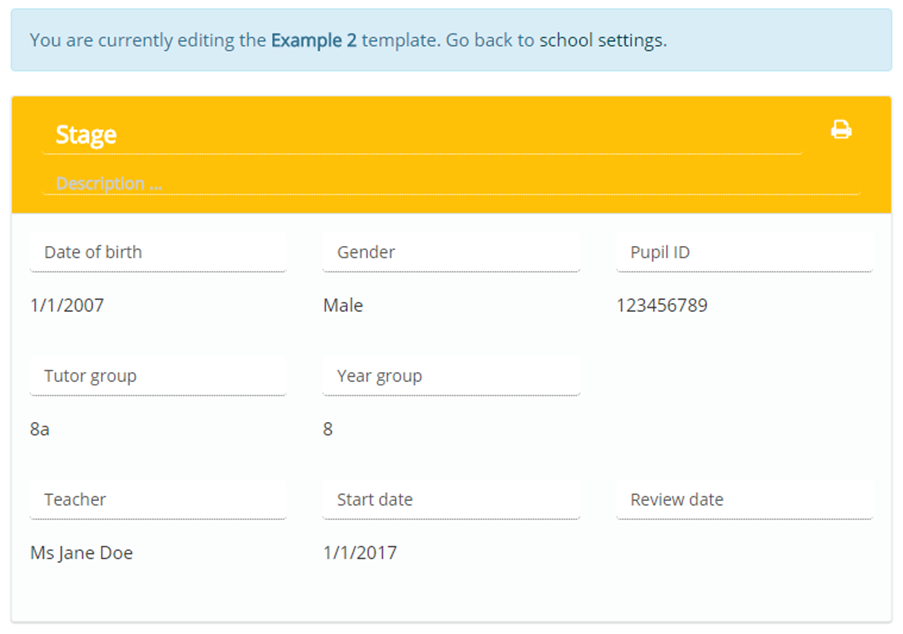
When editing a custom learning plan template, you are able to add your own sections that contain the information of your choice.
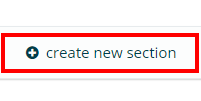
To add a new section to the template, scroll down and click on one of the create new section buttons that are located between core sections throughout the plan.
A popup menu will appear, allowing you to name the new section and choose which fields and text areas it should display. If fields and text areas have been previously created via the add field and add textarea buttons, they will appear as selectable options here.
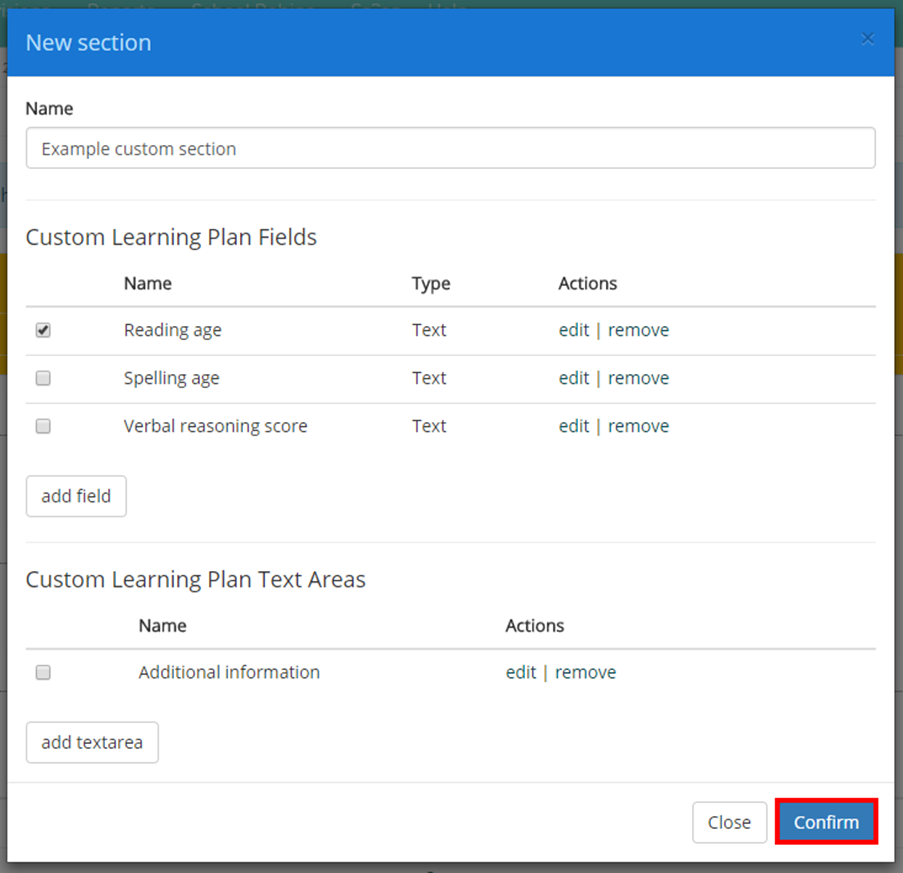
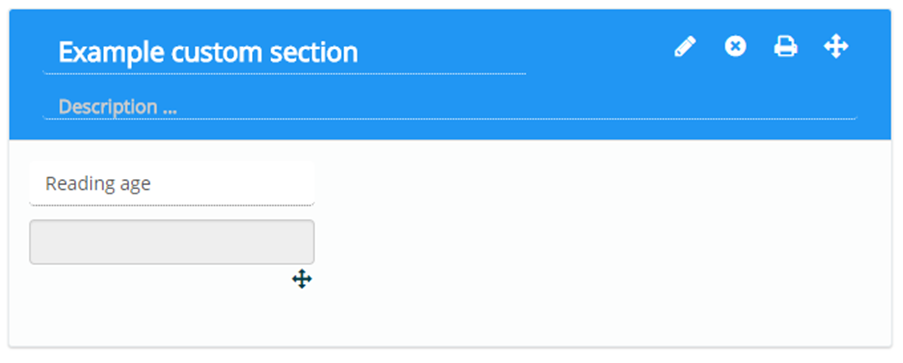
Click on the Confirm button once you have finished to add the new section to the plan.
Was this article helpful?
That’s Great!
Thank you for your feedback
Sorry! We couldn't be helpful
Thank you for your feedback
Feedback sent
We appreciate your effort and will try to fix the article