Once a custom learning plan template has been created, it can be modified to your preferences.
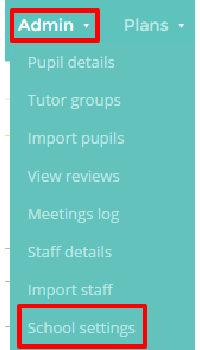
To edit a custom learning plan template, mouse over the Admin tab and select School Settings from the drop down menu.
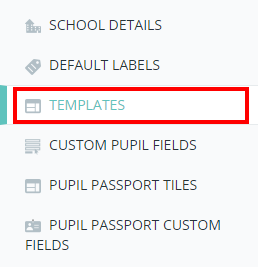
Next, either scroll down to the Templates section of the School Settings page or click on the Templates option in the navigation menu.
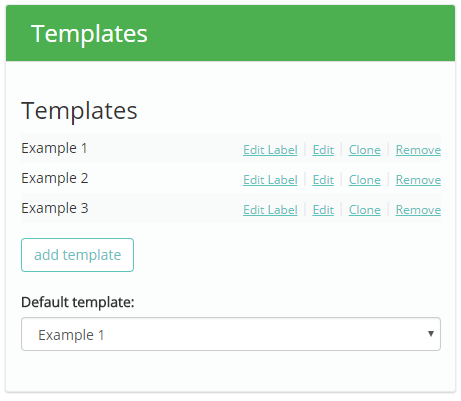
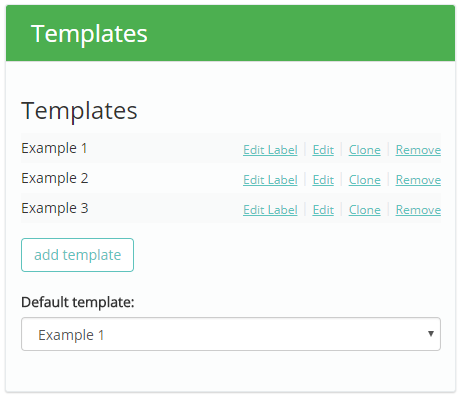
You will be presented with a list of available learning plan templates, as well as the default template information if one has been set up.
Editing a template’s label
To change the displayed label for a custom learning plan template, click on the Edit Label option for the template of your choice.
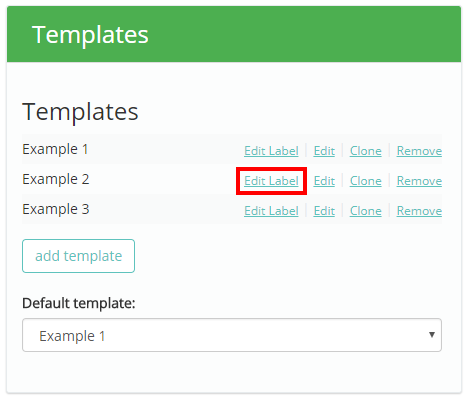
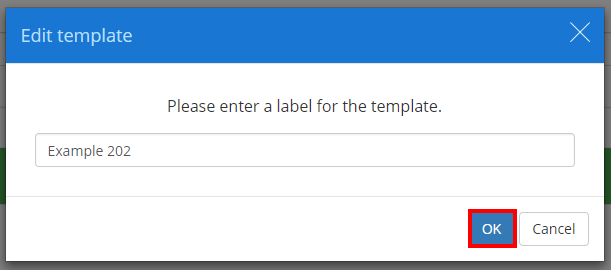
Next, enter the new label into the resulting popup. Click on the OK button once you have finished making changes.
The custom learning plan template will now display the updated label.
Editing a template’s structure
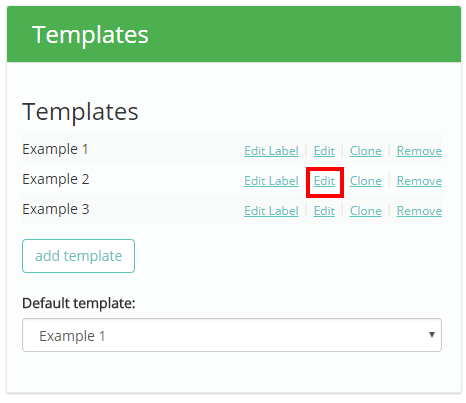
To edit the content and structure of a specific template, click on the Edit option for the template of your choice.
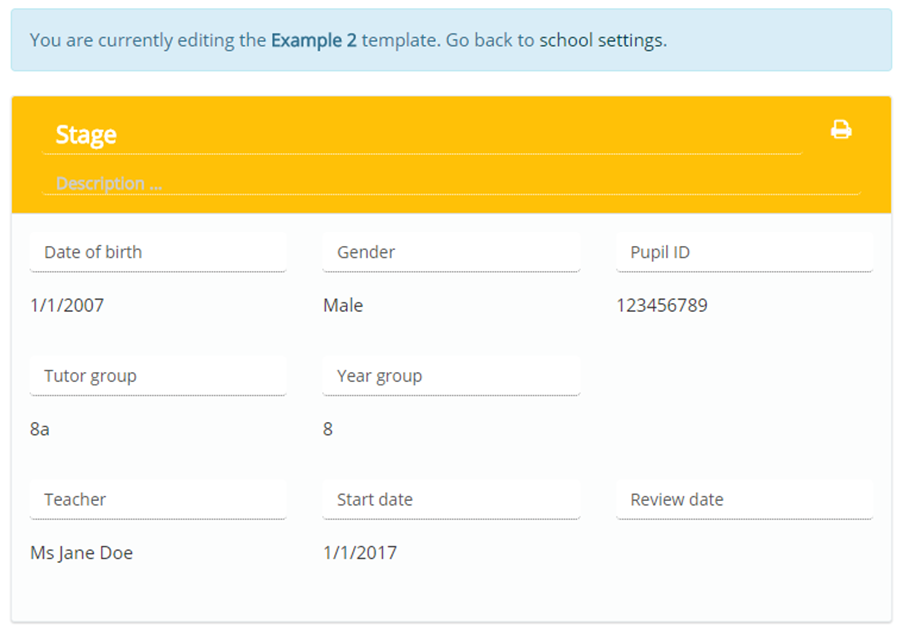
This will take you to a dummy plan where you can rename, rearrange and add sections to the learning plan template.
Was this article helpful?
That’s Great!
Thank you for your feedback
Sorry! We couldn't be helpful
Thank you for your feedback
Feedback sent
We appreciate your effort and will try to fix the article