Once custom templates have been set up in your school’s Provision Map account, they can be applied to learning plans.
To do this, either create a new learning plan or edit an existing plan.
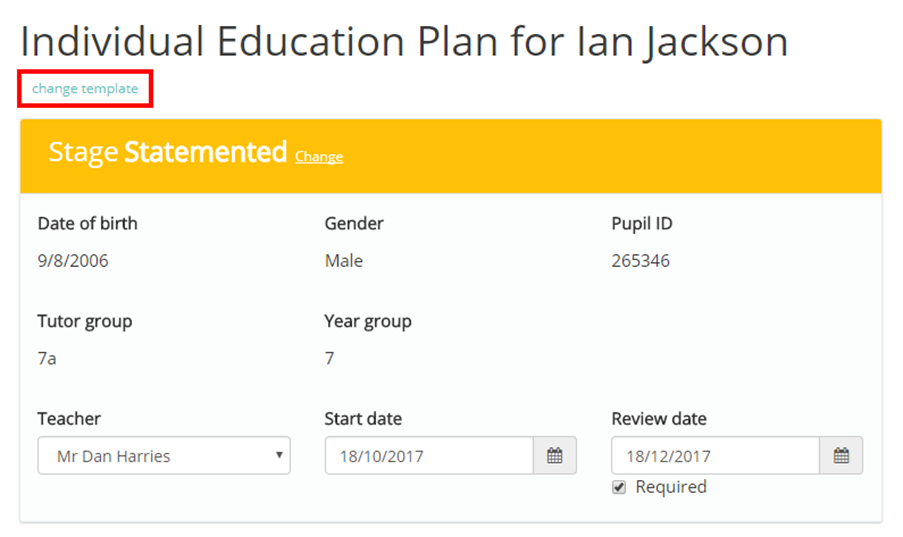
You will be presented with the Edit plan page. If you have created a new plan, your school’s default learning plan template will be applied. To change the applied template, click on the change template button.
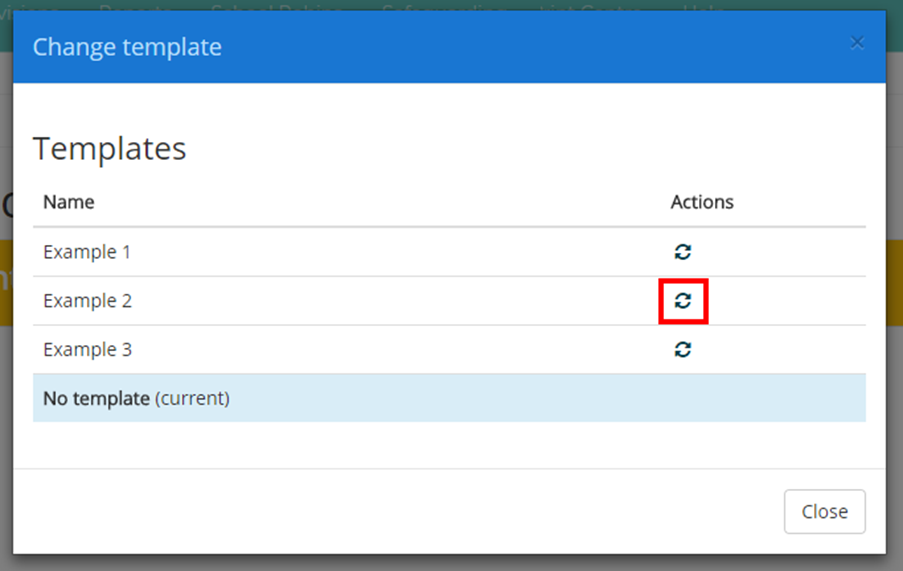
The Change template popup will appear. Here, you will be able to see which template (if any) has been applied to the learning plan. Click on the refresh icon for a template to apply it to the plan.
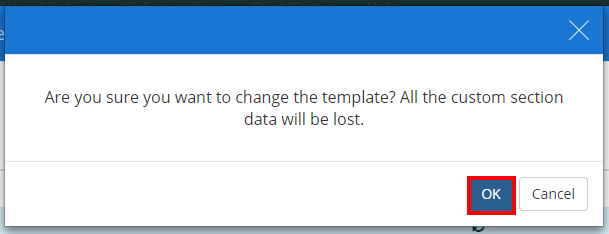
You will receive a popup warning, stating that any information entered into custom sections will be lost. Click on the OK button to confirm the change.
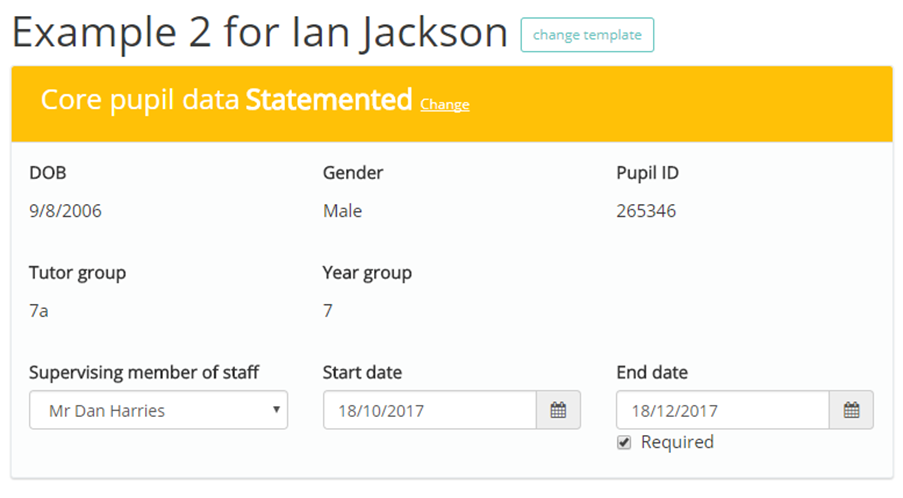
The selected template will then be successfully applied to the learning plan.
Was this article helpful?
That’s Great!
Thank you for your feedback
Sorry! We couldn't be helpful
Thank you for your feedback
Feedback sent
We appreciate your effort and will try to fix the article