As staff members make progress in completing workflows, they will be able to make changes to the entered information as long as they remain incomplete.
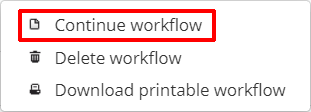
To edit a workflow in progress, click on the three dots menu for the incomplete workflow of your choice.

Next, select Continue workflow from the list of available options.
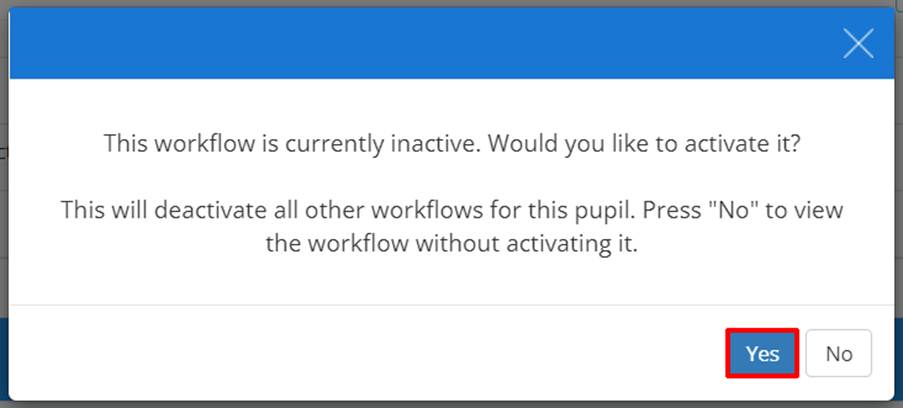
If the selected workflow is inactive, a popup warning will state that it will become the pupil’s active workflow. Click on the Yes button to continue.
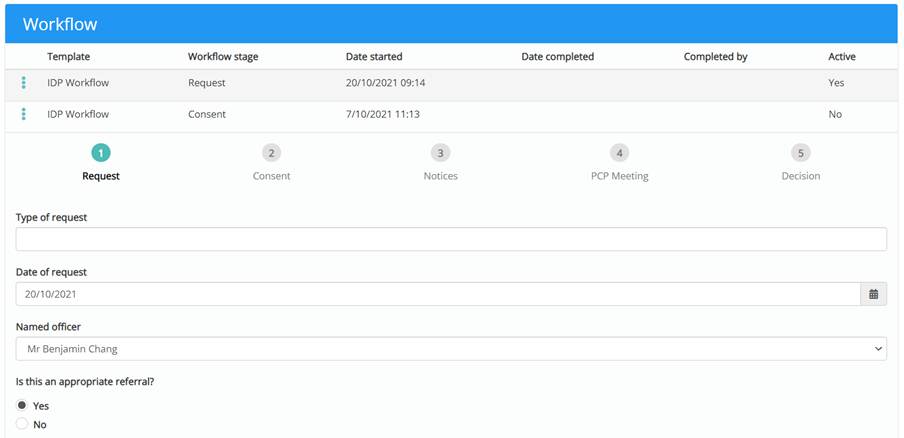
The selected workflow will be displayed below the list of workflows, allowing you to continue and make changes.
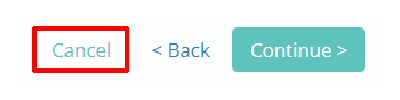
To stop editing the workflow but keep it as the pupil’s active workflow, click on the Cancel button.
Setting a workflow to inactive
There may be times when a pupil should not have any active workflows. To set a workflow to inactive, click on the three dots menu for the active workflow of your choice.

Next, select Stop workflow from the list of available options.
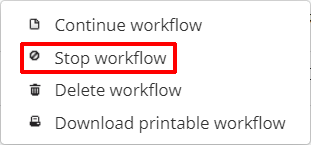
The selected workflow will be set to inactive.
Was this article helpful?
That’s Great!
Thank you for your feedback
Sorry! We couldn't be helpful
Thank you for your feedback
Feedback sent
We appreciate your effort and will try to fix the article