To bulk print a summary of your provisions, click the Print Centre tab at the top of the page.

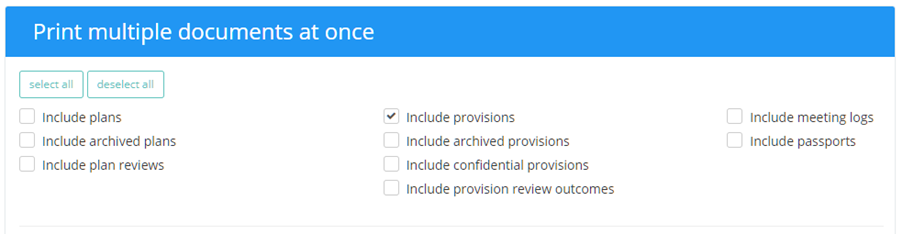
Next, ensure that the Include provisions checkbox has been ticked. Optionally, you can also include archived provisions, confidential provisions, provision review outcomes and associated meeting logs.
There are two format options for the printable documents, which are explained below:

Produce one file per pupil: Select this option to generate a .zip file, where documents for each pupil are included as individual PDFs.
Combine all documents into one file: Select this option to generate a single PDF that contains the selected pupils and their provisions.
You will be presented with a list of pupils who are currently enrolled in your school. The list can be refined by using the search bar on the left or the drop down menus below it to restrict the results to your chosen criteria. To include a pupil’s provisions in the printout, simply tick the checkbox next to their name.
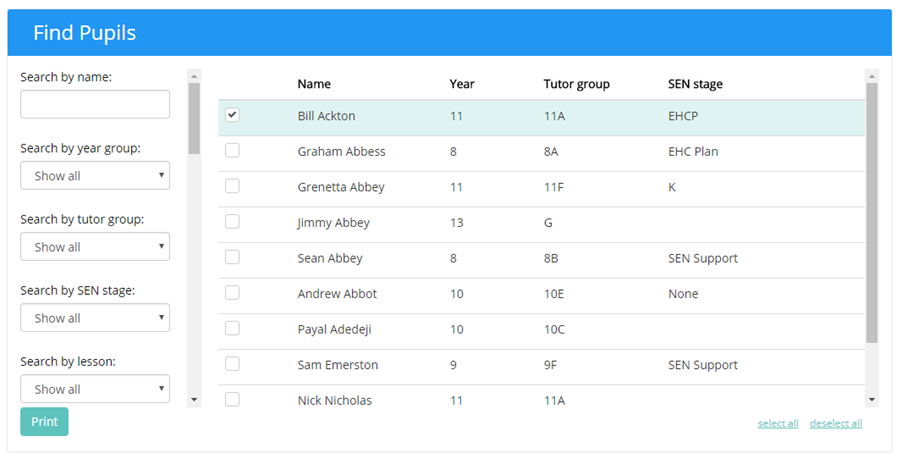
Once you are happy with your choices, click on the Print button to generate a zipped PDF that contains each selected pupil’s associated provisions.

Was this article helpful?
That’s Great!
Thank you for your feedback
Sorry! We couldn't be helpful
Thank you for your feedback
Feedback sent
We appreciate your effort and will try to fix the article