When applying or editing a provision, you can include the same pupil on the provision more than once. This is useful for setting up multiple start and end dates for a single pupil.
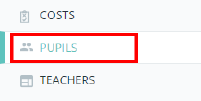
To add another instance of a pupil to a provision, view the provision and either scroll down to the Assigned pupils section or click on the Pupils option in the navigation menu.
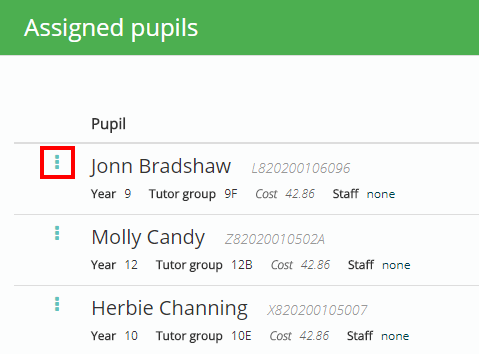
You will be presented with a list of pupils that have been assigned to the provision. Click on the three dots menu next to pupil of your choice.
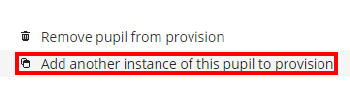
Next, select Add another instance of this pupil to provision from the resulting popup menu.
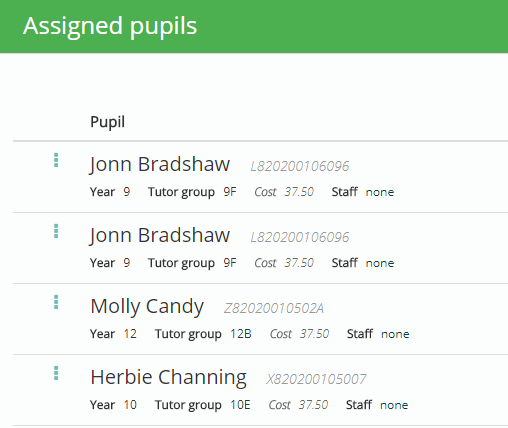
A copy of the selected pupil will now appear twice on the provision.
Was this article helpful?
That’s Great!
Thank you for your feedback
Sorry! We couldn't be helpful
Thank you for your feedback
Feedback sent
We appreciate your effort and will try to fix the article