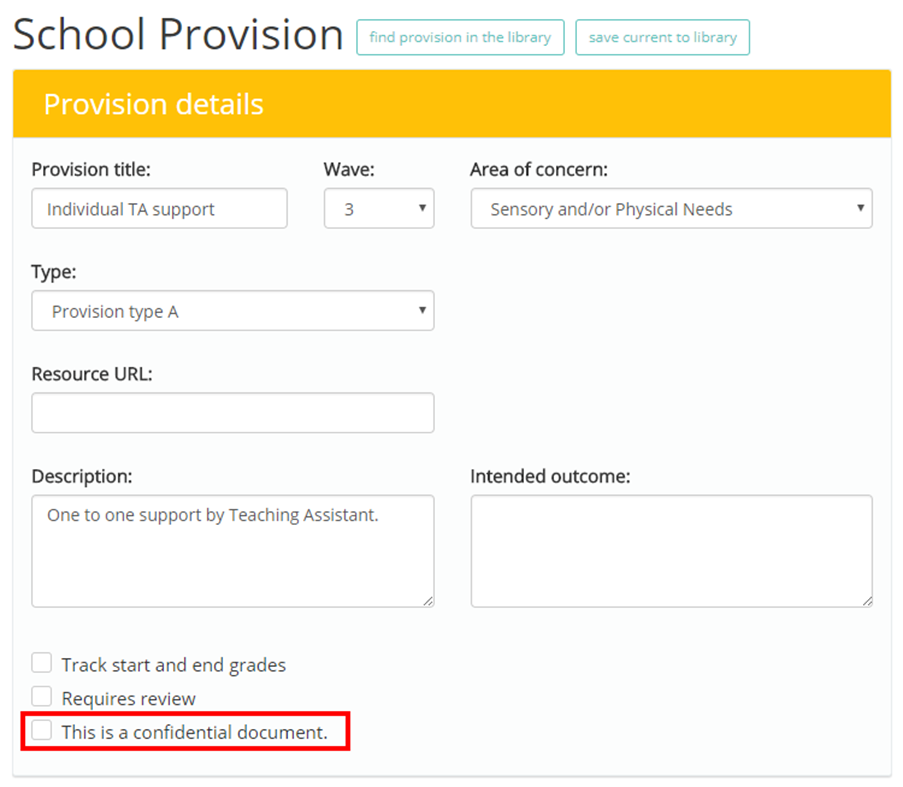
When editing a provision, you can restrict access so that only certain members of staff can view it. To mark a provision as confidential, tick the checkbox labelled This is a confidential document in the Provision Details section of the provision.
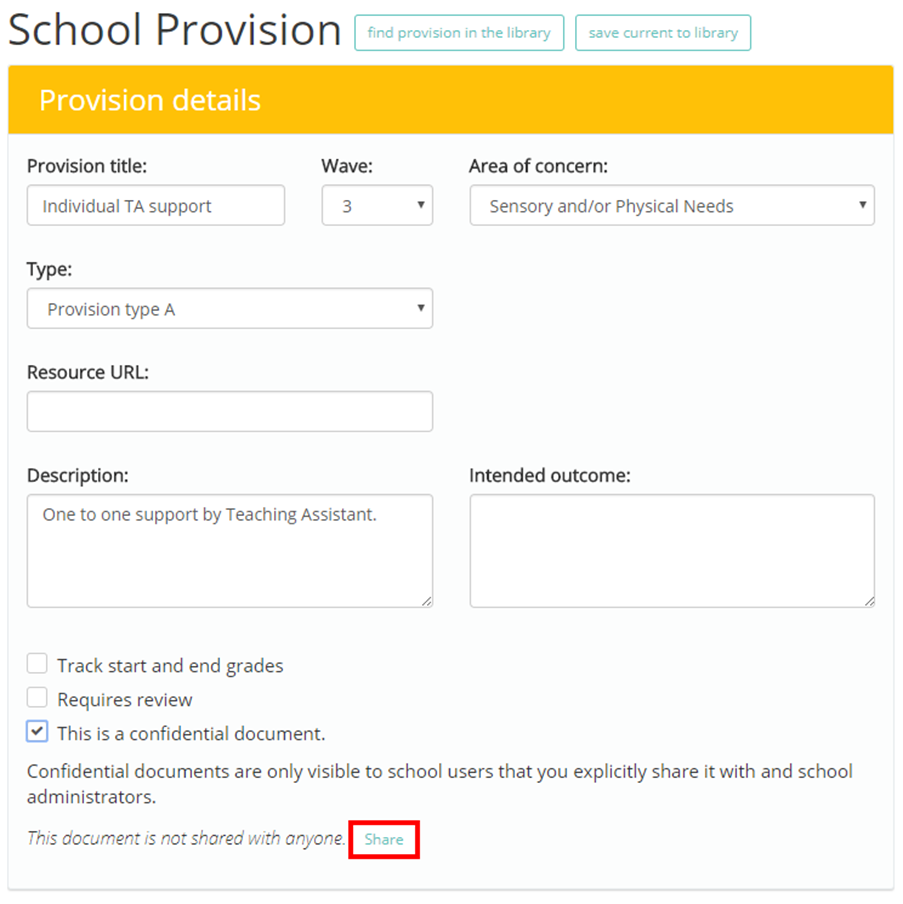
Once ticked, you will see an additional button labelled Share. Click on this button to choose which members of staff can access the provision.
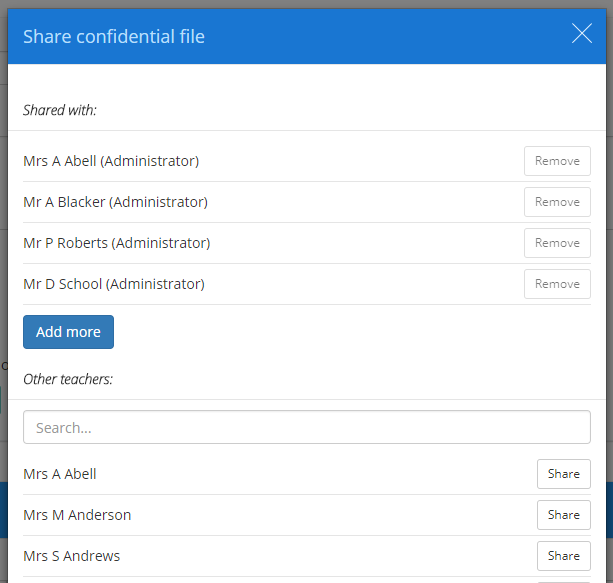
In the resulting pop up, click on the Add more button to begin searching for staff members who will be given access to the provision. Users with the School Admin role will automatically be granted access, but you can add additional staff members by clicking on the Share button next to their name. To remove access to the provision, click on the Remove button for a user underneath the Shared with heading.
If a user doesn’t have the permission to view confidential documents or hasn’t been given access to the confidential provision, they will be unable to see the provision in the list of applied provisions.
Was this article helpful?
That’s Great!
Thank you for your feedback
Sorry! We couldn't be helpful
Thank you for your feedback
Feedback sent
We appreciate your effort and will try to fix the article