In Provision Map, you can create a new Learning Plan in two different ways:
Creating a Learning Plan from the Plans menu
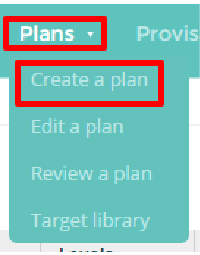
To create a plan from anywhere within Provision Map, mouseover the Plans tab in the top menu and select Create a plan from the drop down menu.
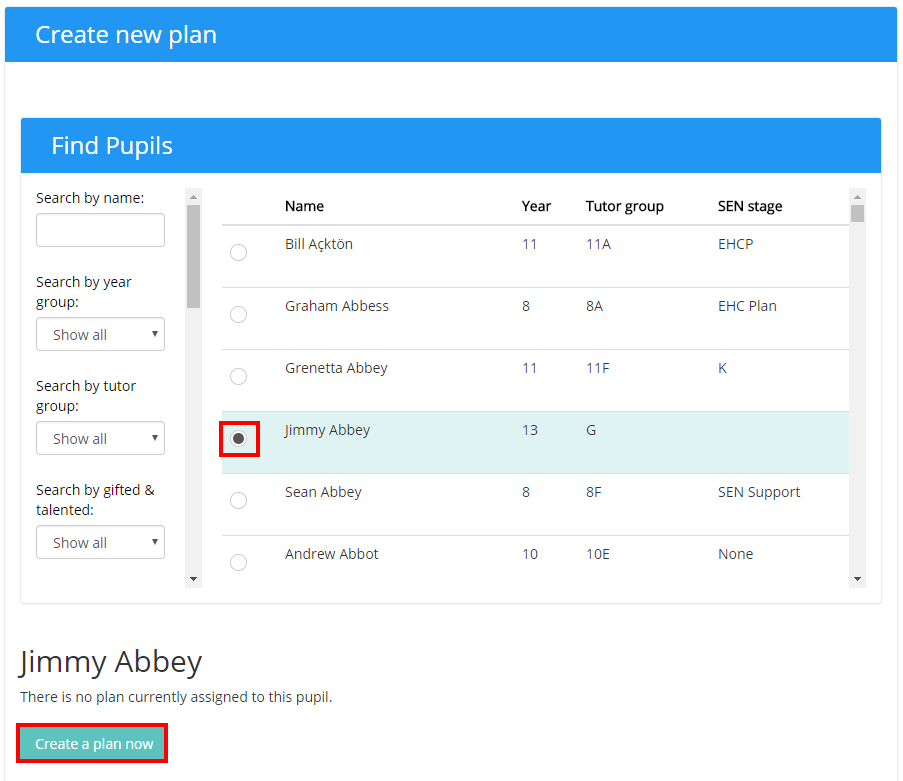
You will be taken to the screen below. Use the Find pupils filter to locate the pupil you wish to create a Learning Plan for and toggle the radio button next to their name. If this is the pupil’s first plan, a button labelled Create a plan now will appear below the list. If the selected pupil already has an existing plan in place, you will be given the options of creating a new plan (which archives their active plan), or editing their current plan.
Creating a Learning Plan from the Pupil details page
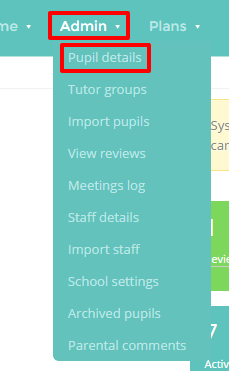
To create a Learning Plan from the pupil details page, mouse over the Admin tab in the top menu and select Pupil details from the drop down menu.
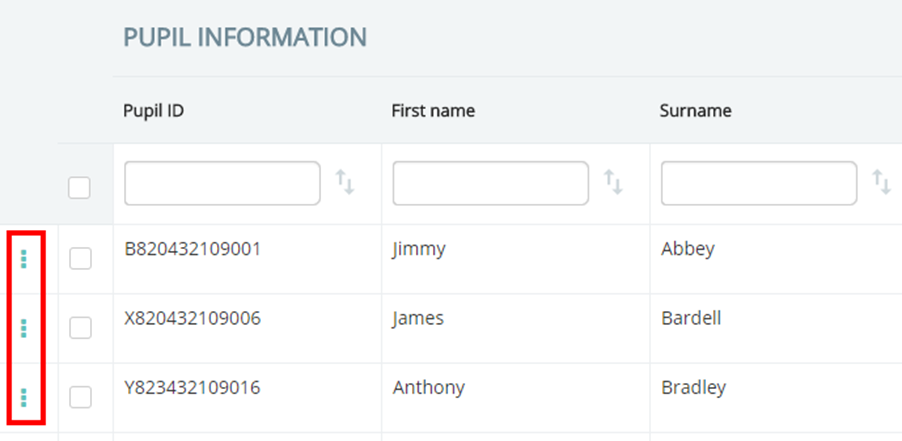
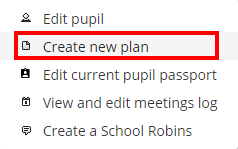
Next, click on the three dots next to a pupil’s name and select Create new plan from the resulting menu.
Both of these methods will take you to the Edit plan page, where you can begin entering details about the pupil’s individual education needs.
Was this article helpful?
That’s Great!
Thank you for your feedback
Sorry! We couldn't be helpful
Thank you for your feedback
Feedback sent
We appreciate your effort and will try to fix the article