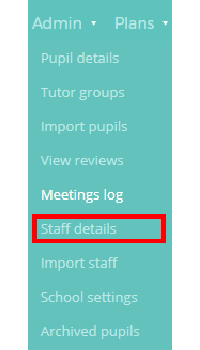
If a staff member forgets the password to their Provision Map account, a School Admin user can reset their password. To do this, mouse over the Admin tab and select the Staff details option from the drop down menu.
Resetting an individual password
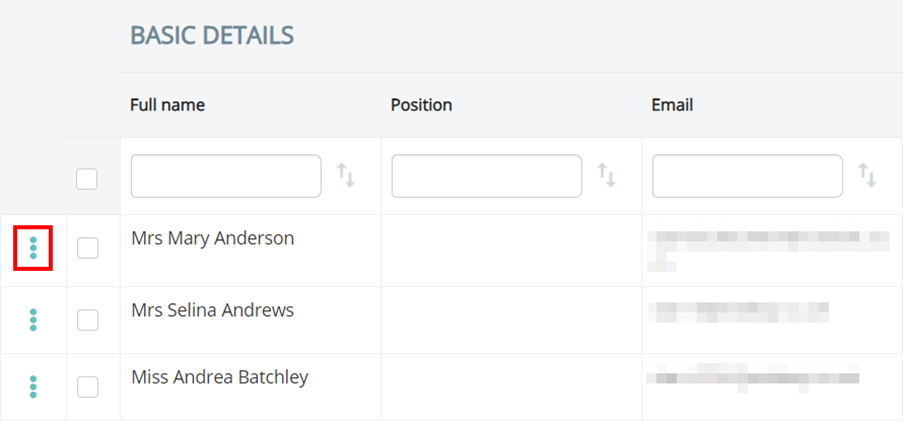
To reset a staff member’s password, click on the three dots menu next to their name in the displayed list of staff members.
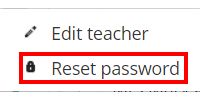
Next, select Reset password.
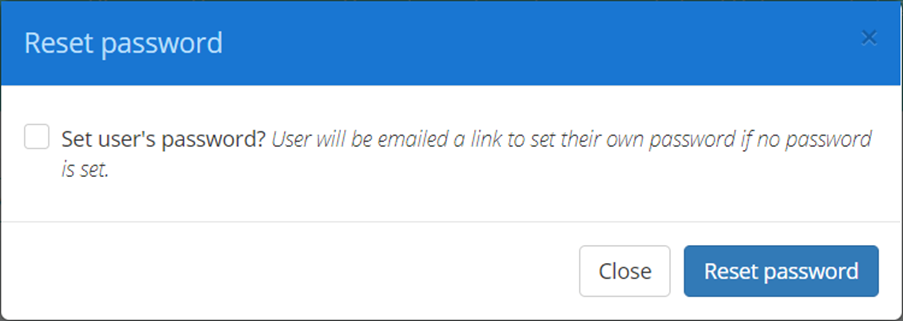
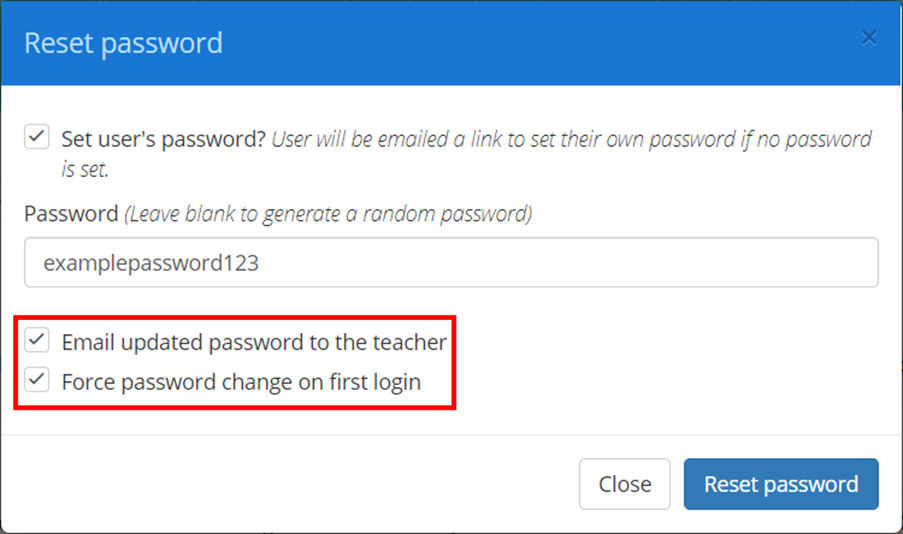
The Reset password popup will appear. You can either set a password for the new staff member, or provide them with a link to set their own initial password. To set a password on their behalf, tick the checkbox labelled Set user’s password.
If you are setting the staff member’s password yourself, you can also choose to email the updated password to them or force them to change their password once they log in.
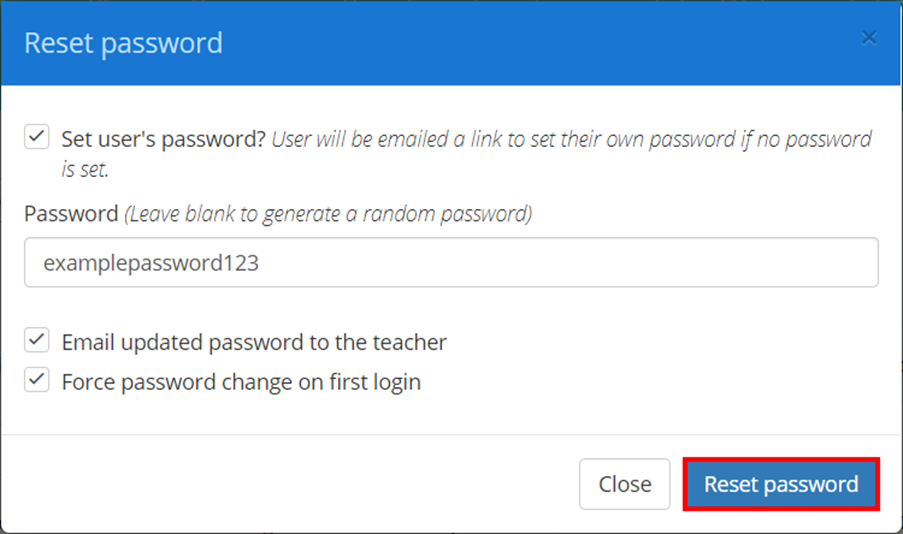
Once you have finished, click on the Reset password button to finalise the password reset.
Resetting multiple staff members passwords
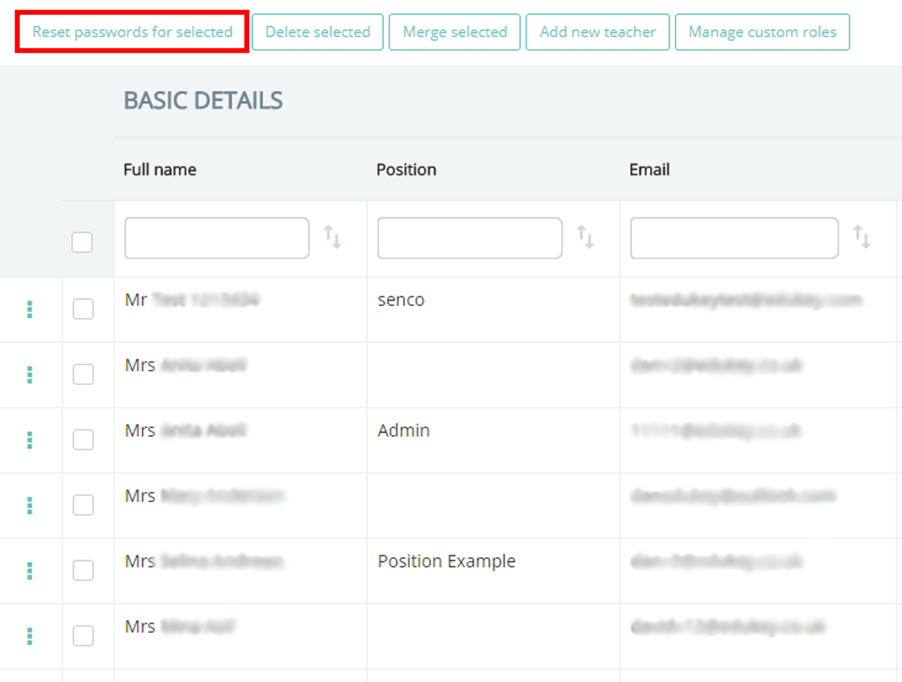
To reset multiple passwords simultaneously, select the staff members whose passwords you wish to reset by ticking the checkbox next to their name. Once you have made your selections, click on the Reset passwords for selected button.
A popup window will appear to confirm your choice. Once confirmed, the selected staff members will be sent an email with details on how to reset their password.
Was this article helpful?
That’s Great!
Thank you for your feedback
Sorry! We couldn't be helpful
Thank you for your feedback
Feedback sent
We appreciate your effort and will try to fix the article