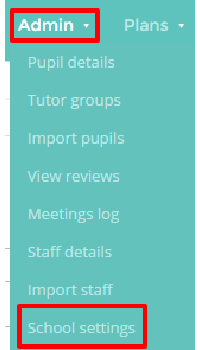
Provision Map allows you to upload a school logo that will appear on all plan, provision and passport printouts. To upload your school’s logo to Provision Map, mouse over the Admin tab and select the School settings option from the drop down menu.
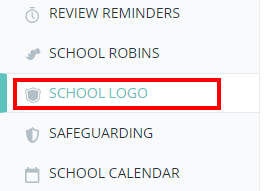
Next, either scroll down to the School logo section or select School Logo from the navigation menu on the left.
You will see a blank logo underneath the School logo heading. Click on this logo to choose which image file you would like to upload as the new school logo. We recommend that you use a .png or .jpg file that is no more that 500px x 500px in size.
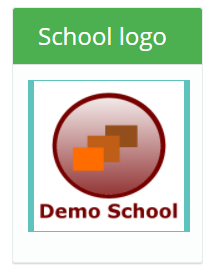
Once a file has been successfully chosen, it will appear underneath the School logo heading.
Was this article helpful?
That’s Great!
Thank you for your feedback
Sorry! We couldn't be helpful
Thank you for your feedback
Feedback sent
We appreciate your effort and will try to fix the article