When school robins are sent out to staff, a default introduction message will appear at the beginning of the email.
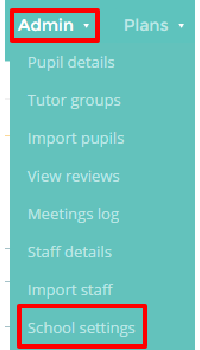
To change the default introduction for your school robins, mouse over the Admin tab and select the School settings option from the drop down menu.
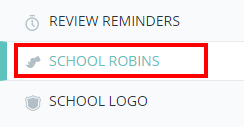
Next, either scroll down to the School robins section or click on School robins in the navigation menu to the left.
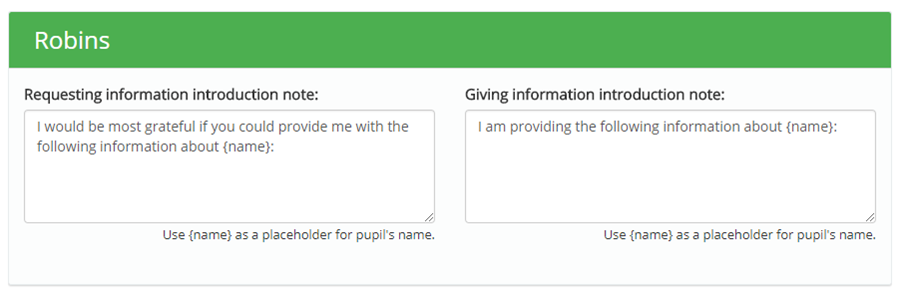
You will see two text areas: one for requesting information and one for giving information. Enter your new introduction notes into the text areas.
You can include the special placeholder {name], appears in the school robin as the pupil’s name.
The next time you create a school robin, select the Request information radio button to use the Requesting information introduction note or the Give information radio button to use the Giving information introduction note.
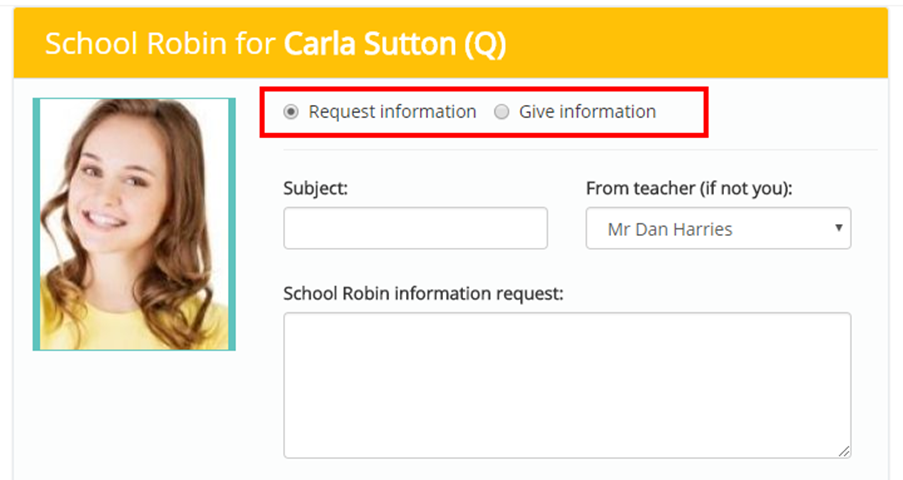
When the school robin is successfully sent, the selected note will appear at the start of the email.
Was this article helpful?
That’s Great!
Thank you for your feedback
Sorry! We couldn't be helpful
Thank you for your feedback
Feedback sent
We appreciate your effort and will try to fix the article