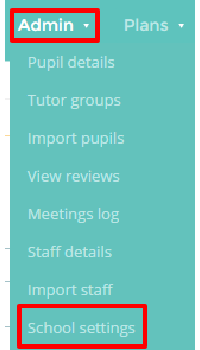
Provision Map allows you to add additional passport tiles that appear on your passports by default. To set up default tiles, mouse over the Admin tab at the top of the page and select School settings from the drop down menu. If passport tiles are added to this section at a later date, they will only be visible on newly created passports.
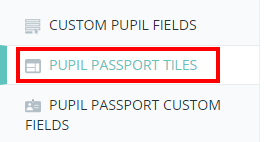
Next, either scroll down to the Pupil passport tiles section or click on the Pupil passport tiles option in the navigation menu to the left.
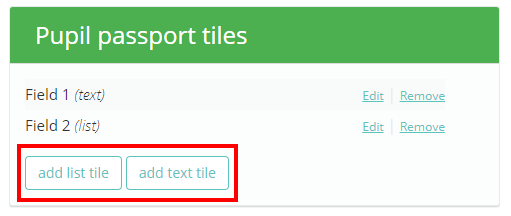
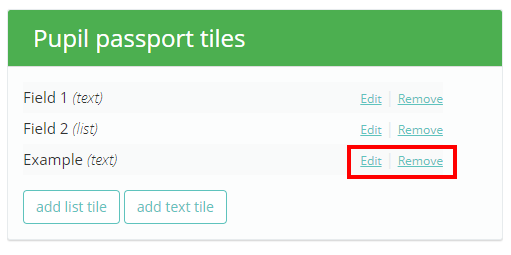
You will see a list of existing default passport tiles with the tile type for each field in brackets. Click on the Add list tile or the Add text tile button to create a new passport tile in your preferred format.
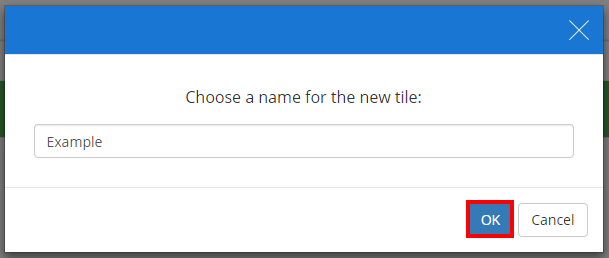
This will bring up a pop up dialog that asks you to name the new passport tile. Click on the OK button once you have finished to add it.
The new passport tile will then appear within the list. You can change the name of the tile with the Edit button and delete the it with the Remove button.
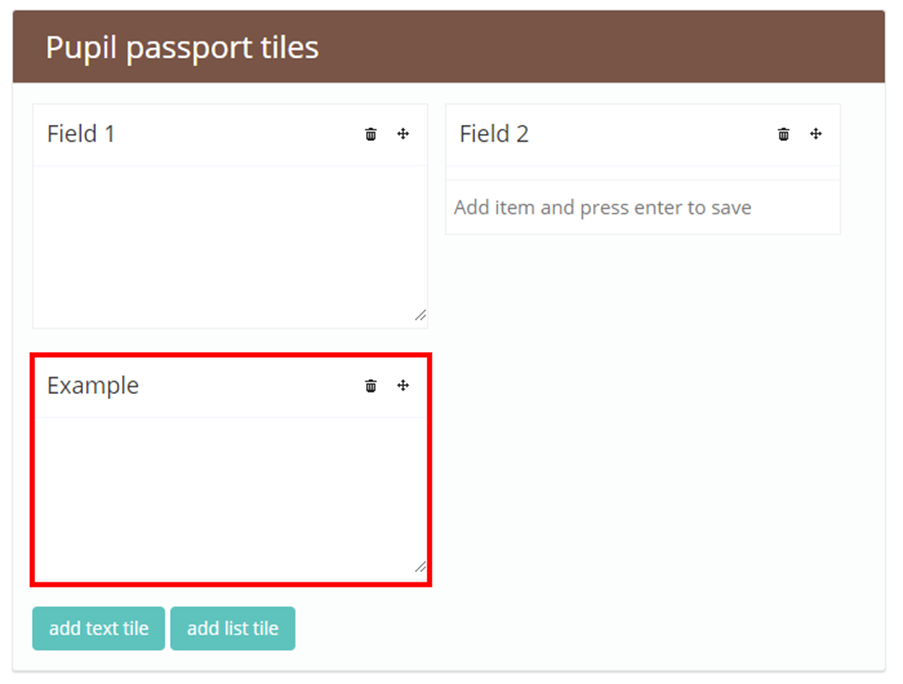
The next time you create a new passport, you will see the default passport tile in the Pupil passport tiles section.
Was this article helpful?
That’s Great!
Thank you for your feedback
Sorry! We couldn't be helpful
Thank you for your feedback
Feedback sent
We appreciate your effort and will try to fix the article