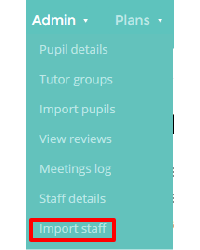
If you are using a manual Provision Map account that isn’t integrated with your Management Information System, you can manually import staff members into Provision Map. To begin importing staff from a spreadsheet, mouse over the Admin tab at the top of the page and click on the Import staff option in the drop down menu.
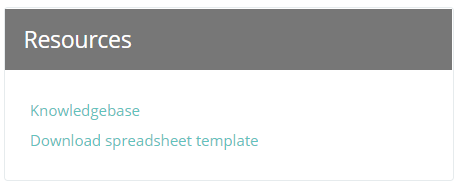
You will need an Excel spreadsheet containing the list of staff members that you’d like to import. The spreadsheet will need to follow a specific template, which can be downloaded from the Resources section on the right. The required information can be easily generated from your School’s MIS (e.g. SIMS, Integris, etc), but If you need assistance in this task then contact your school’s data manager.
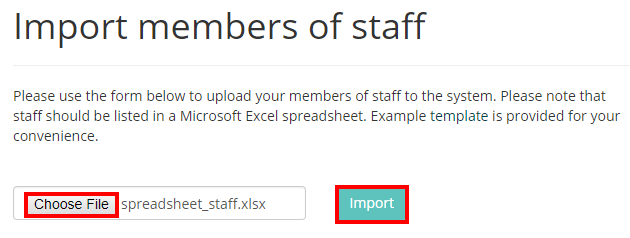
Once you have prepared a spreadsheet, click on the Choose file button, locate your spreadsheet of staff members and click on the Import button.
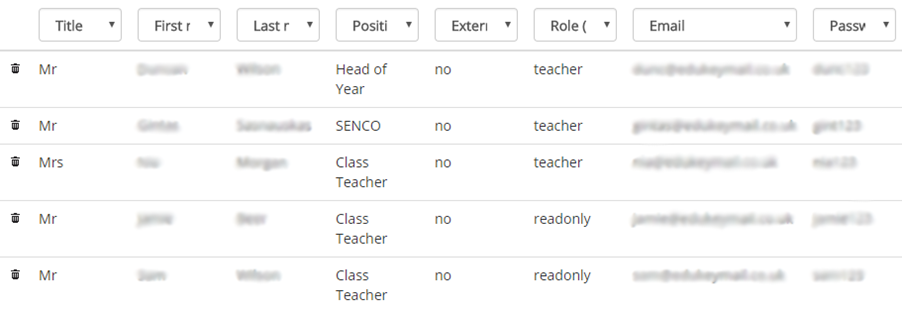
A preview of your uploaded staff will appear below the spreadsheet upload section. Any errors in the uploaded data (such as missing fields or incorrect date formats) will appear with red backgrounds. You can match each column heading to the relevant column by selecting the most appropriate option from each drop down field.
If you have made changes to the list of uploaded staff, click on the Update button to check for additional errors. Once you are certain that the data is correct, click on the Import button to add the uploaded staff members to your Staff details page.
Was this article helpful?
That’s Great!
Thank you for your feedback
Sorry! We couldn't be helpful
Thank you for your feedback
Feedback sent
We appreciate your effort and will try to fix the article