Once a meeting log has been created, changes can be made to the entry at any time.
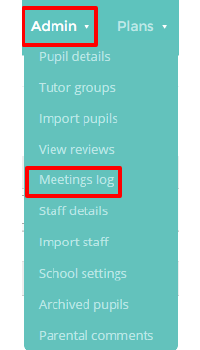
To edit a meeting log in Provision Map, mouse over the Admin tab at the top of the page and select Meetings log from the list of available options.
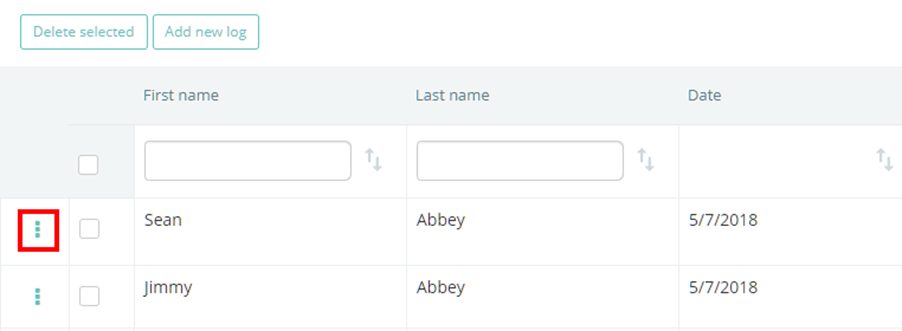
You will be presented with a list of meeting logs that have been created in your school’s Provision Map account. Click on the three dots menu for the log you would like to edit.
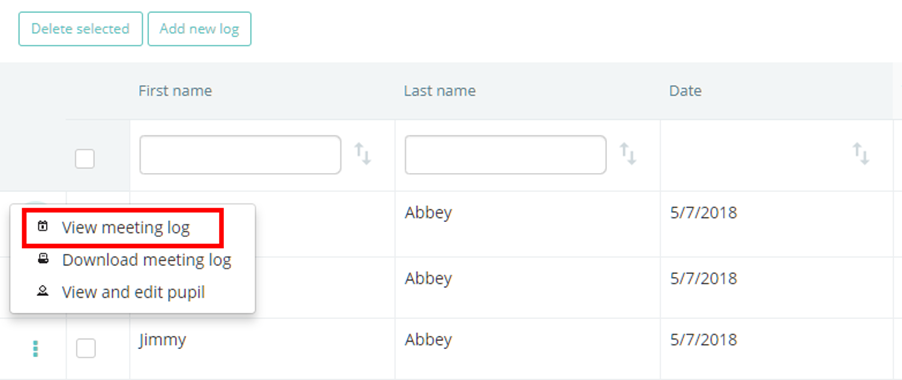
Next, select View meeting log from the resulting menu.
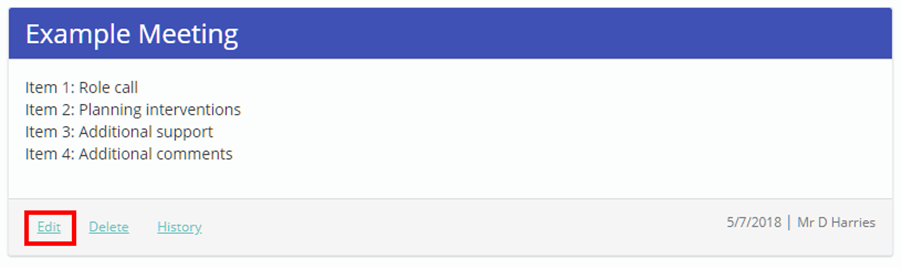
The meeting log will be displayed. Click on the Edit button to begin editing the entry.
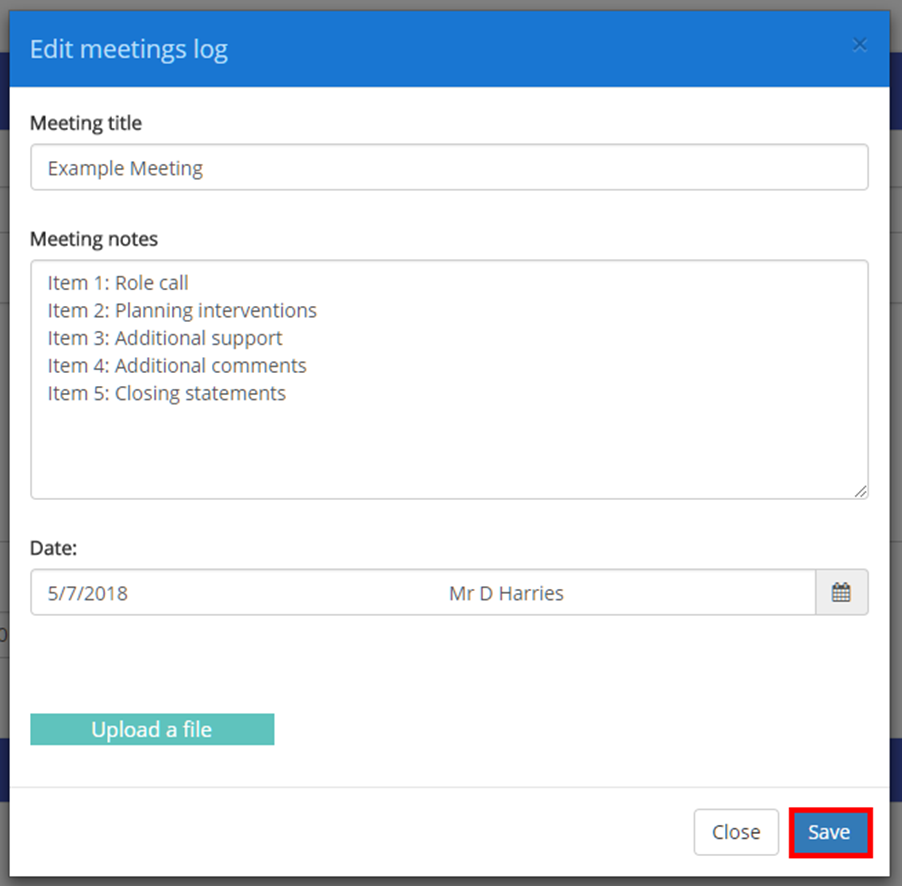
The Edit meeting log popup will appear, allowing you to make changes to the entry. Once you’ve made changes, click on the Save button to apply them.
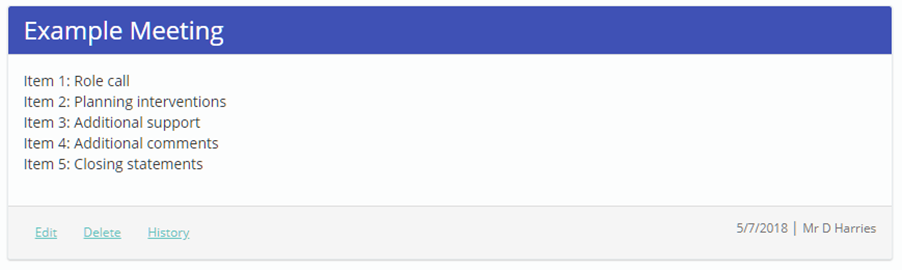
The changes will now be visible on the meeting log.
Uploading a file
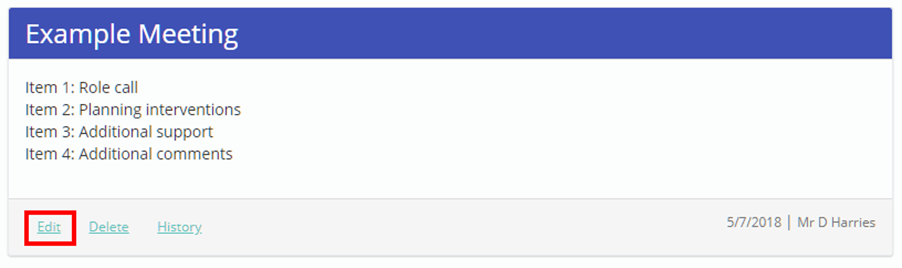
To upload a file to an existing log, click on the Edit button.
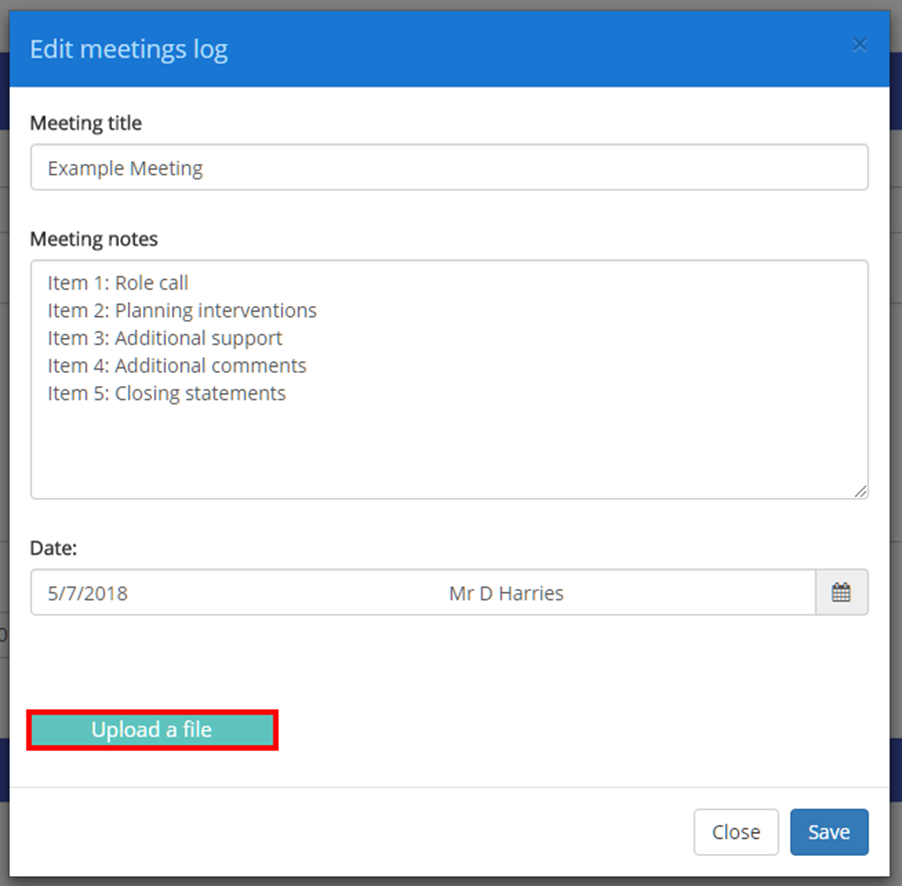
The Edit meeting log popup will appear. Click on the Upload a file button to choose a file to include.
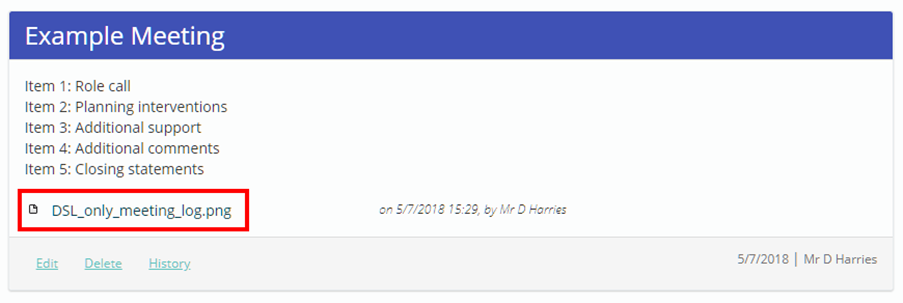
Once uploaded, the attached file will be visible on the meeting log.
Viewing edit history
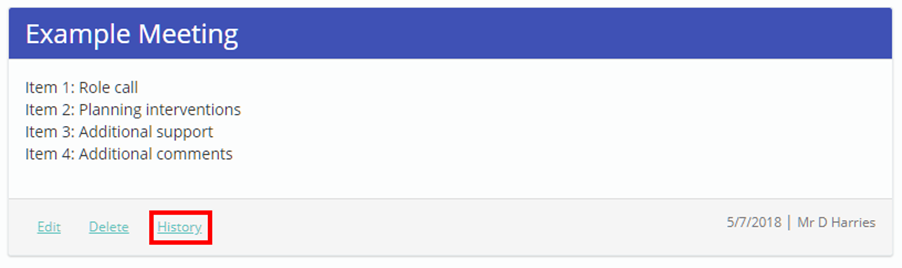
As changes are made to existing logs, it may be useful to keep track of what was changed and when. To view changes for a log, click on the History button.
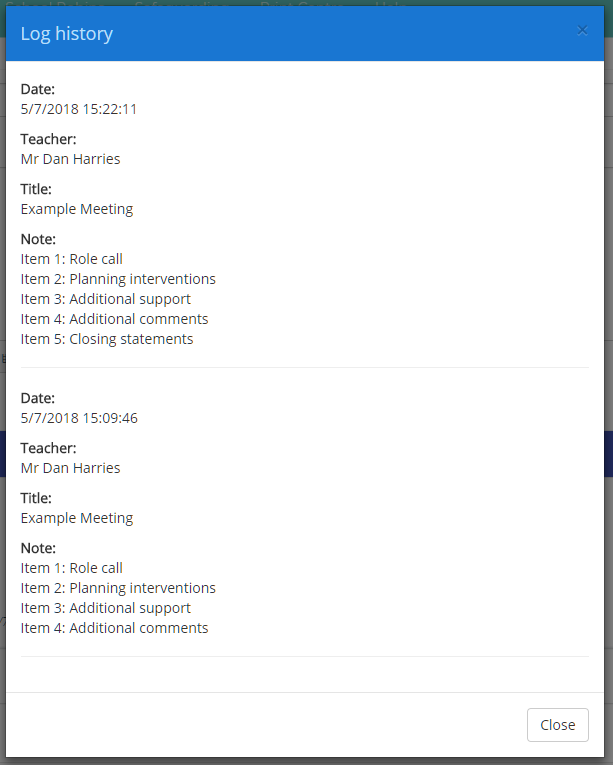
The Log history popup will appear, which displays when changes were made and how they affected the entry.
Was this article helpful?
That’s Great!
Thank you for your feedback
Sorry! We couldn't be helpful
Thank you for your feedback
Feedback sent
We appreciate your effort and will try to fix the article