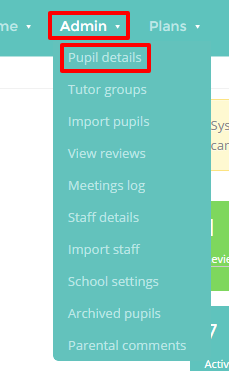
You can refine the results in the Pupil details list by applying filters and searches. To do this, mouse over the Admin tab and select the Pupil details option from the drop down menu.
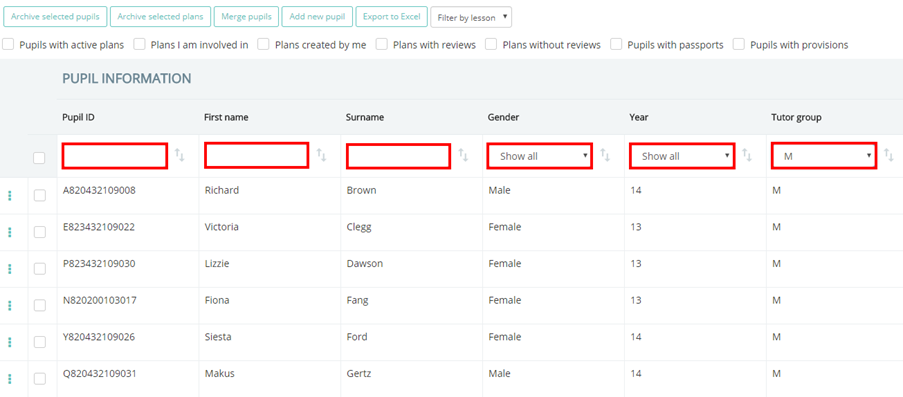
You will see several headings above each column in the list. These columns will either have a searchable text field or a drop down menu field, which you can use to filter the list to specific criteria.
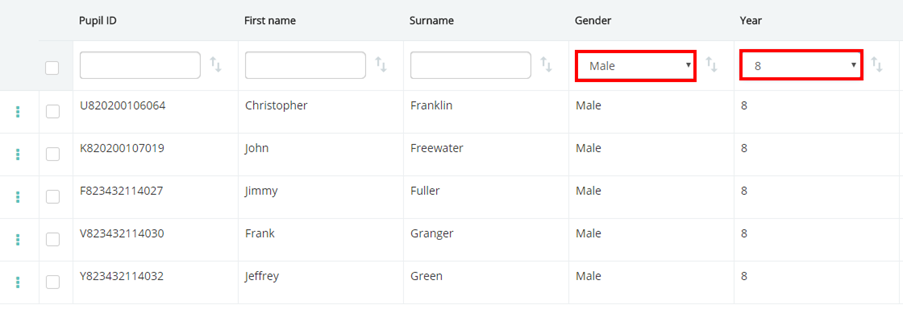
In the example below, the pupil details list has been filtered to Male pupils in Year 8.
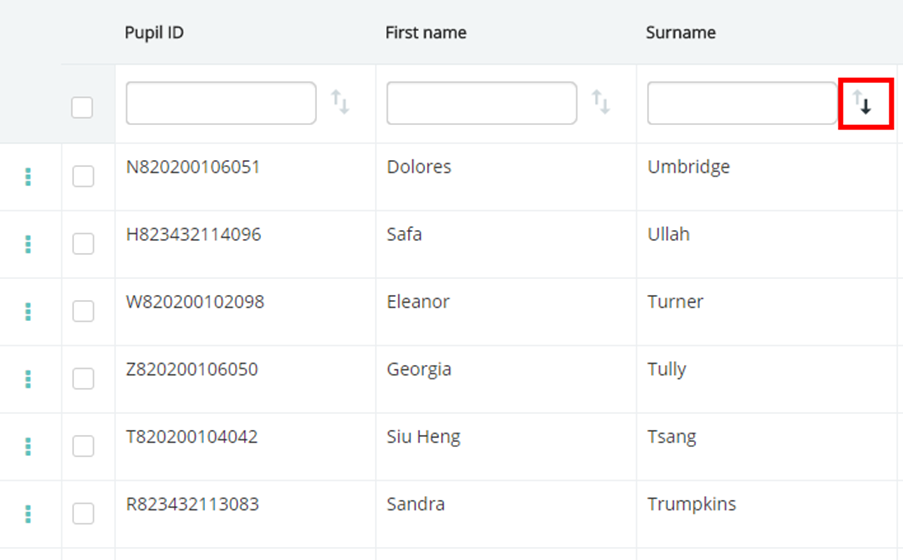
You are also able to sort the columns in the pupil details list by ascending and descending order. To do this click on the sort icon next to a column heading. The arrow in bold indicates how the column has been sorted.
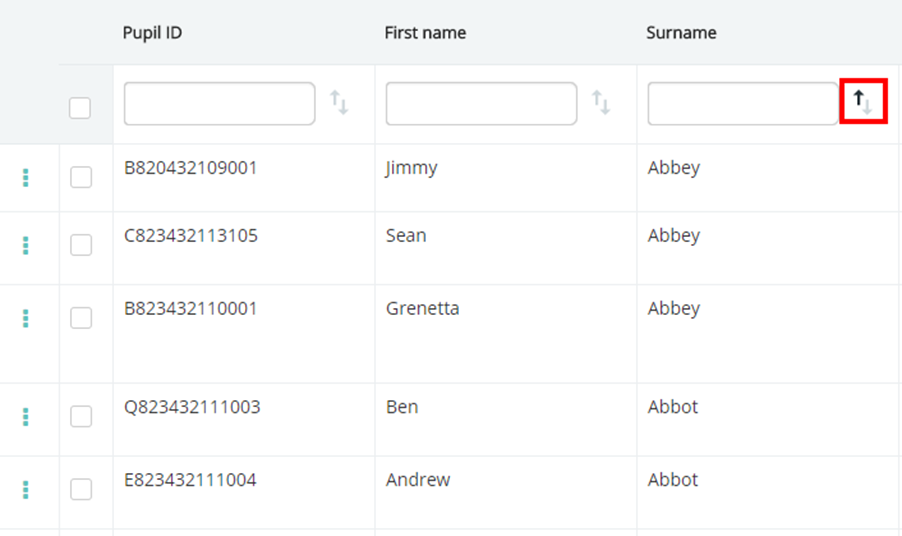
In the example below, the Surname column has been sorted in descending order.
Was this article helpful?
That’s Great!
Thank you for your feedback
Sorry! We couldn't be helpful
Thank you for your feedback
Feedback sent
We appreciate your effort and will try to fix the article