Individual members of staff can be assigned different levels of permissions in Provision Map.
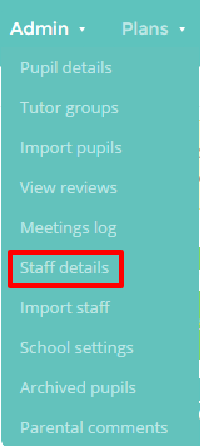
To begin assigning permissions out to staff, mouse over the Admin tab at the top of the page and select Staff Details from the drop down menu.
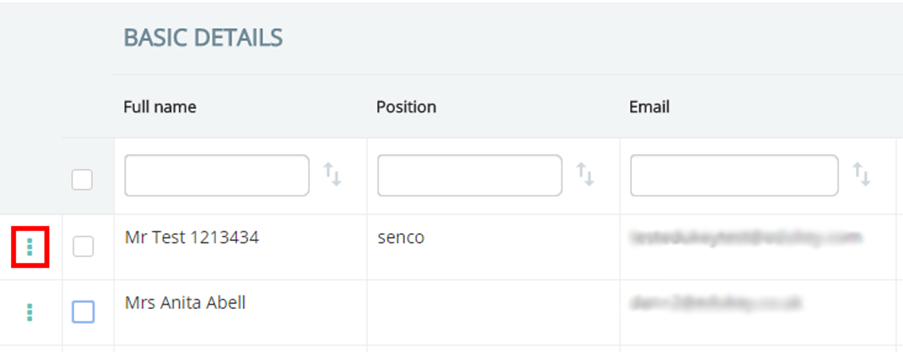
You will be presented with a list of your staff that have email addresses in Provision Map. To edit a staff member’s permissions, click on the 3 dots menu next to a staff members name.
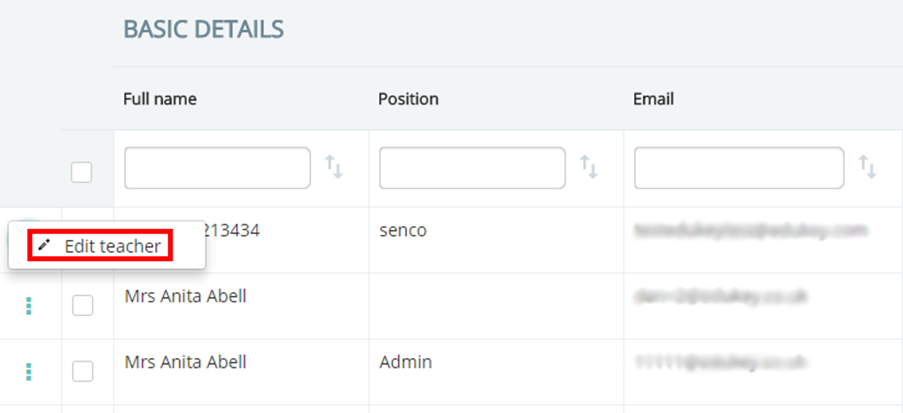
Next, select Edit teacher.
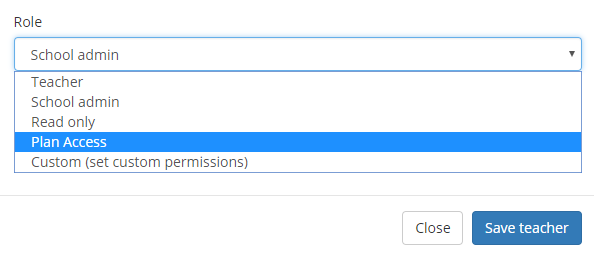
This will open a popup menu. Scroll down to the Role section and select a role option from the drop down menu. The four default roles are explained below:
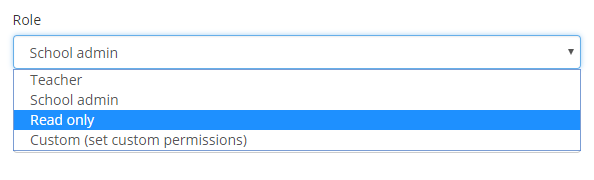
Teacher: This role grants all user permissions except for admin rights and the ability to view confidential documents.
School admin: This role grants all user permissions.
Read only: This role grants the user the ability to view plans, provisions, reports, finances and school robins.
Custom: This role allows a school admin user to tick the exact permissions that they would like the user to have.
Creating custom roles
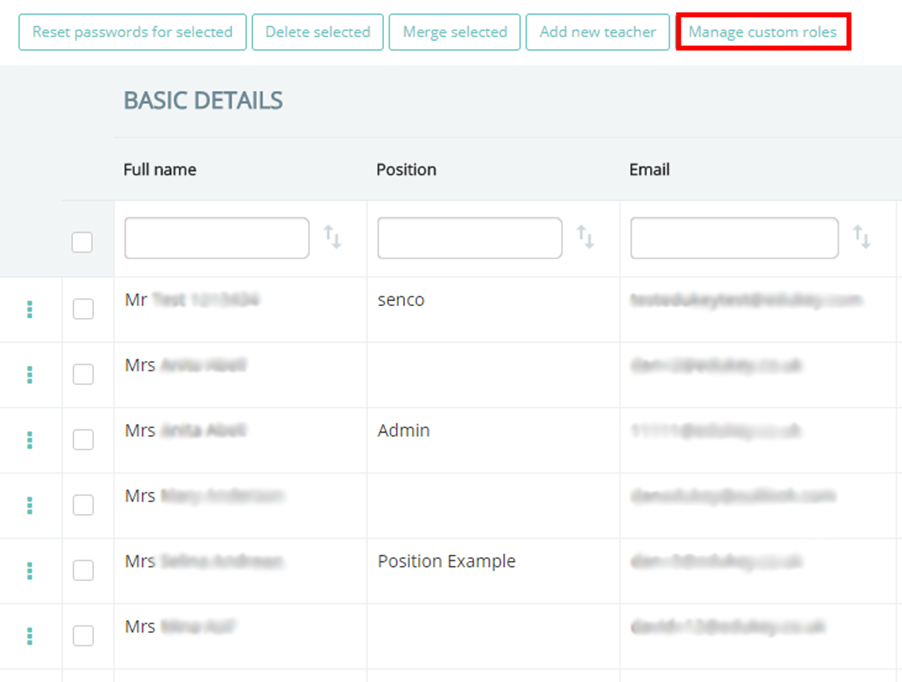
If the default roles do not match your school’s needs, you are also able to create a custom role with the permissions of your choice. To set up a custom role, click on the Manage custom roles button above the list of staff members.
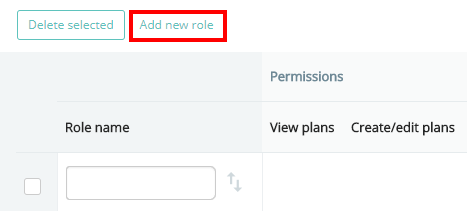
This will take you to a list of available custom roles. Click on the Add new role button above the list.
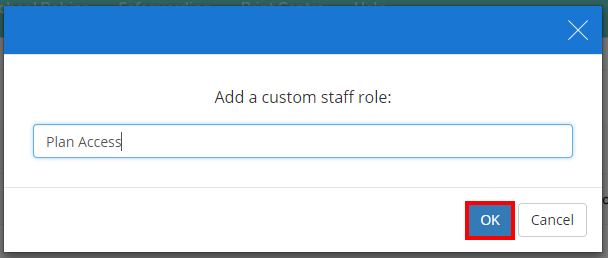
Next, give the new custom role a name and click on the OK button.
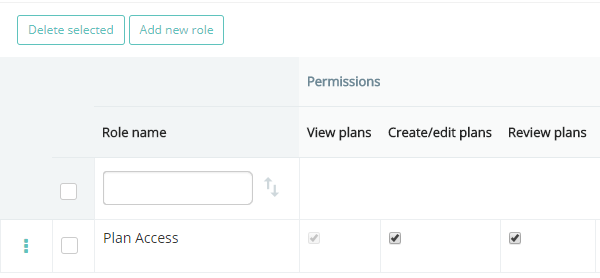
The new custom role is successfully added to the custom roles list. Assign specific permissions to the role by ticking the permissions checkboxes to the right of the custom role.
The custom role will also appear as a selectable option in the Role drop down menu when editing a staff member’s details.
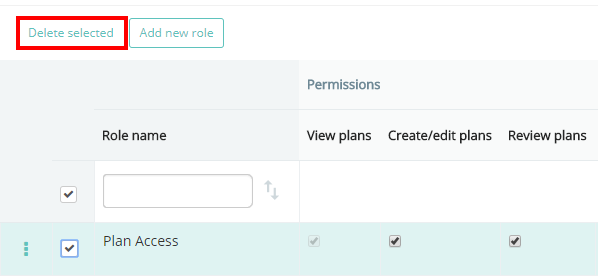
To delete a custom role, clicking on its row in the custom roles list and click the Delete selected button.
Was this article helpful?
That’s Great!
Thank you for your feedback
Sorry! We couldn't be helpful
Thank you for your feedback
Feedback sent
We appreciate your effort and will try to fix the article